

BMW 8.73.64
| S. No. | Enhancements | Details |
|---|---|---|
| 1. | User Validation | With the User Validation screen you can now add custom logic to the Item Master, Super Batch Entry, Batch Ticket, Cash Master and Price List Master Screens. |
| 2. | Setup Module |
|
| 3. | Accounts Payable Module |
|
| 4. | Production Module |
|
| 5. | BOM Module |
|
| 6. | Common Module |
|
| 7. | R and D Module |
|
| 8. | Customization Module |
|
| 9. | Administration Module |
|
| 10. | Inventory Module |
|
| 11. | Finance Module |
|
| 12. | Sales Module |
|
| 13. | Bank Cash Module |
|
User Validation
With this feature, you can now add custom logic to the following BatchMaster WEB screens to execute actions at specific points during various processes.
- Item Master
- Super Batch Entry
- Price List Master
- Item Location
- Bank Master
- Batch Close
- Cash Master
- Super Batch Close
- Batch Ticket
- Batch Entry
- Serial Lot Maintenance
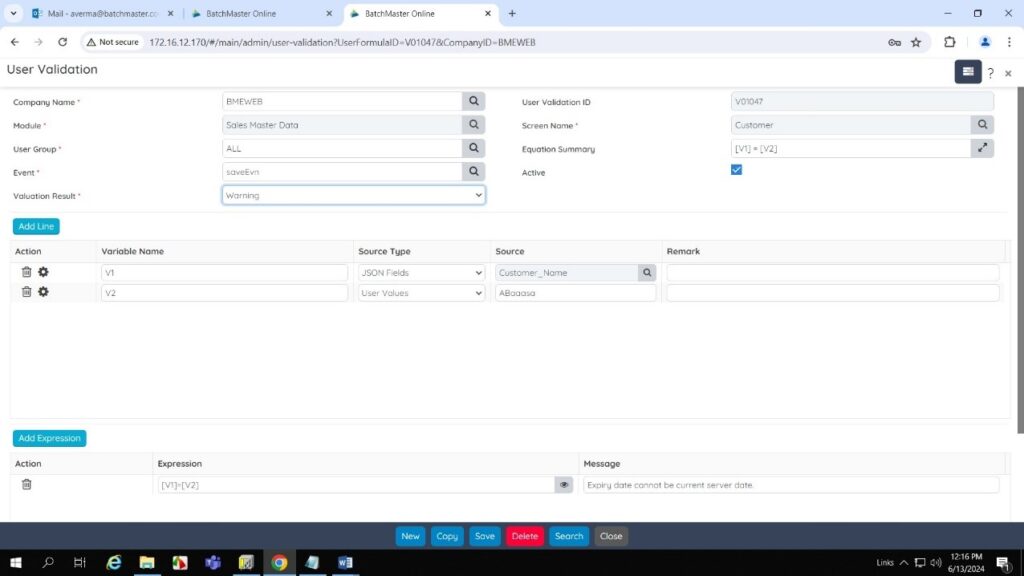
This allows you to:
- Validate fields by processing events as defined on the custom logic screen.
- Execute SQL statements for desired events and view the results in the specified result field or an optional field.
Setup Module
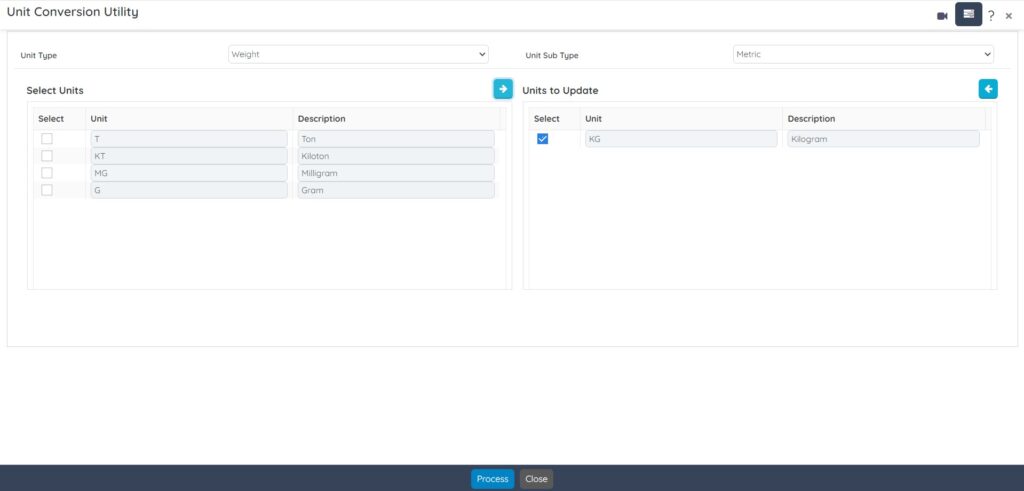
Enhancements on the Unit Conversion Utility Screen
The Unit Conversion Utility screen’s UI is enhanced with the two grids including the  Right Arrow and
  Left Arrow buttons. This enhancement separate the available standard units for selection and the units selected for conversion, making the process more organized and intuitive. The two Select Units and Units to Update grids simplifies the selection process by enabling you to easily transfer units needed for conversion.
- The Select Units grid is provided to obtain all the standard units available in BatchMaster Web for the selected Unit Type and Unit Sub Type.
- The Units to Update grid is provided to display the units that have been moved into this grid from the Select Units The units among which conversions are required are selected from this grid before clicking the Process button.
- Right Arrow button is provided to move the selected units from the Select Units grid to the Units to Update
- Left Arrow button is provided to move back the selected units from the Units to Update grid to the Select Units
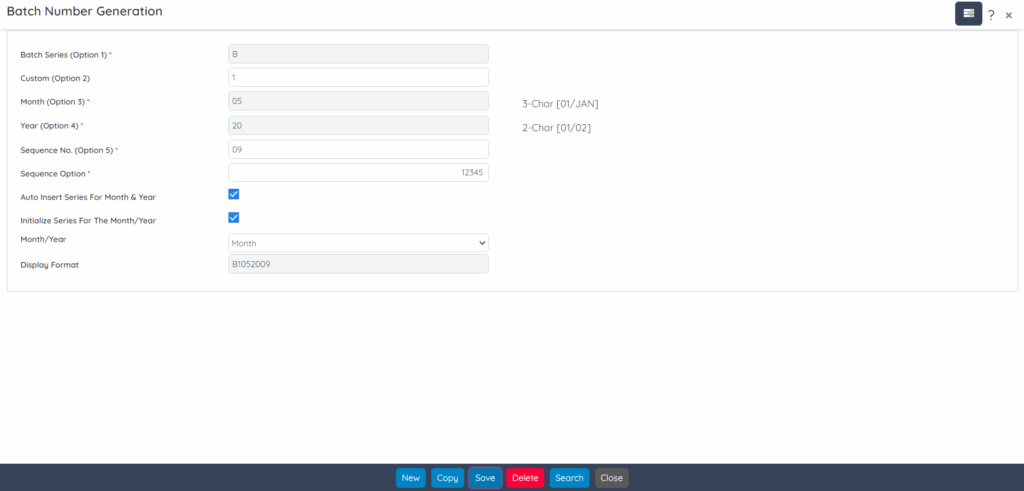
UI Enhancements on the Batch Number Generation Screen
The Batch Number Generation screen’s UI is modified to ease the usability of the screen.
UI Enhancements on the Super Batch Series Screen
The Super Batch Series screen’s UI is modified to ease the usability of the screen.

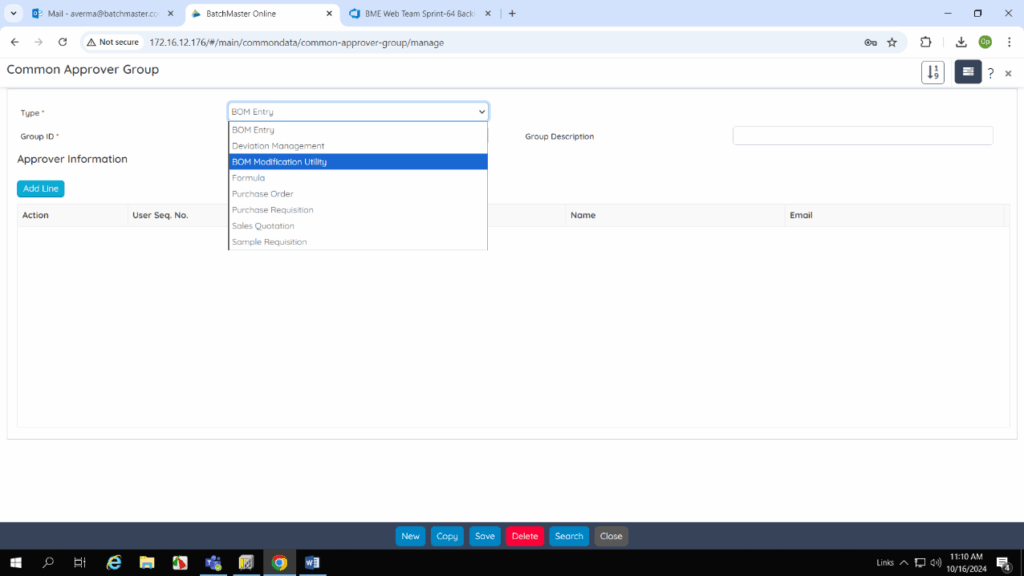
Enhancements on the Common Approver Group Screen
The Common Approver Group screen is enhanced with a new BOM Modification Utility option available under the Type field to select the BOM Modification Utility type of transaction. This enhancement extends the functionality of the Common Approver Group screen by introducing the ability to create approver groups specifically for the BOM Modification Utility type of transactions.
Introduced a New HMRC VAT Default Screen
A new HMRC VAT Default screen is introduced in BatchMaster Web under the Setup Module. The HMRC VAT Default screen is used to maintain connection details that are crucial for establishing a secure and efficient communication channel for VAT submissions or other tax-related functionalities between BatchMaster Web and HMRC. The HMRC VAT Default screen provides the following benefits:
- Centralized management of HMRC connection details
- Simplified VAT submission process
- Secure communication with HMRC
- Enhanced compliance with UK Tax Regulations

AP Module
Enhancements on the Vendor Aging Screen
The Vendor Aging screen is now enhanced with a new Show Amount By field for filtering records based on dates related to vendor transactions. The available options in the dropdown are:
- Apply Date: On selecting this option, the system considers the date when a transaction is applied or recorded in the system. Say, for example, if you make a vendor transaction on September 15th, but it’s not recorded until September 20th, the apply date would be September 20th.
- Due Date (When Due): On selecting this option, the system considers the date by which a vendor payment is due. Say, for instance, if a vendor transaction is performed on September 1st with a due date of September 30th, the when Due Date (When Due) would be September 30th.
- Due Date (Over Due): On selecting this option, the system considers the date after which a vendor transaction is considered late or overdue. Say, for example, if the payment due date for vendor is September 30th and it remains unpaid, the overdue date would be October 1st.
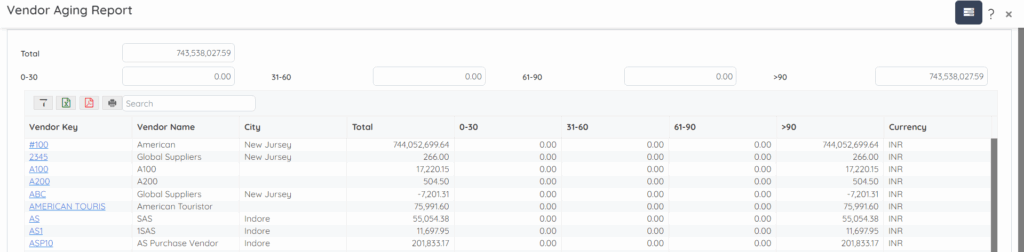
This enhancement on the Vendor Aging screen facilitate more flexibility and precision in analyzing transactions by introducing the Show Amount By field. It offers filtration and categorization of vendor aging records based on different date criteria, improving decision-making and operational efficiency.
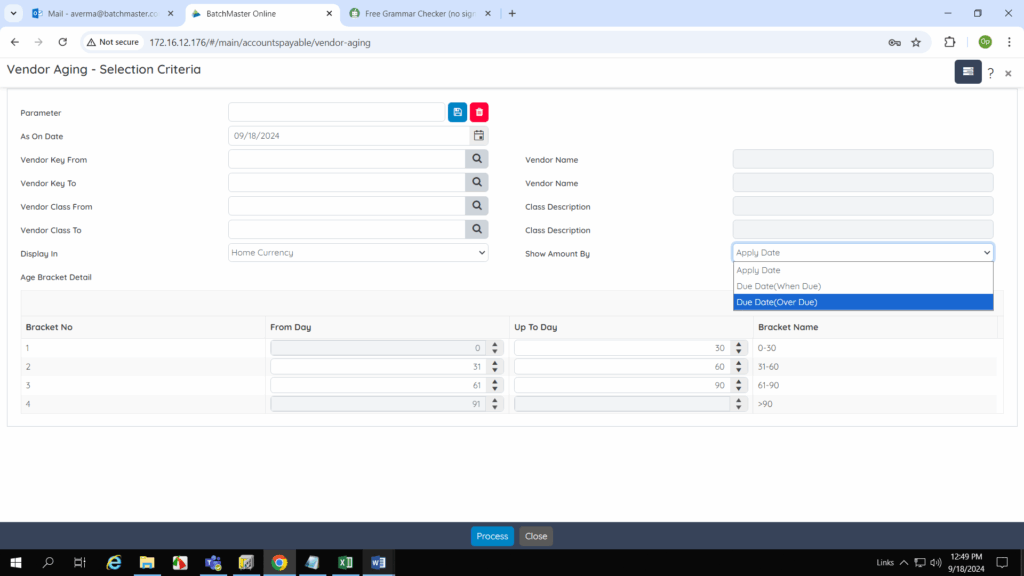
Once you click the Process button, the system generates the Vendor Aging Report as per the option selected in the Show Account By field.
Enhancements on the Customer Aging Screen
The Customer Aging screen is now enhanced with a new Show Amount By field for filtering records based on dates related to customer transactions. The available options in the dropdown are:
- Apply Date: On selecting this option, the system considers the date when a transaction is applied or recorded in the system. For example, if you make a transaction on September 15th, but it’s not recorded until September 20th, the apply date would be September 20th.
- Due Date (When Due): On selecting this option, the system considers the date by which a customer payment is due. Say, for instance, if a transaction is performed on September 1st with a due date of September 30th, the when Due Date (When Due) would be September 30th.
- Due Date (Over Due): On selecting this option, the system considers the date after which a transaction is considered late or overdue. Say for example, if the payment due date for customer is September 30th and it remains unpaid, the overdue date would be October 1st.
This enhancement on the Customer Aging screen facilitate more flexibility and precision in analyzing customer transactions by introducing the Show Amount By field. It offers filtration and categorization of customer aging records based on different date criteria, improving decision-making and operational efficiency.
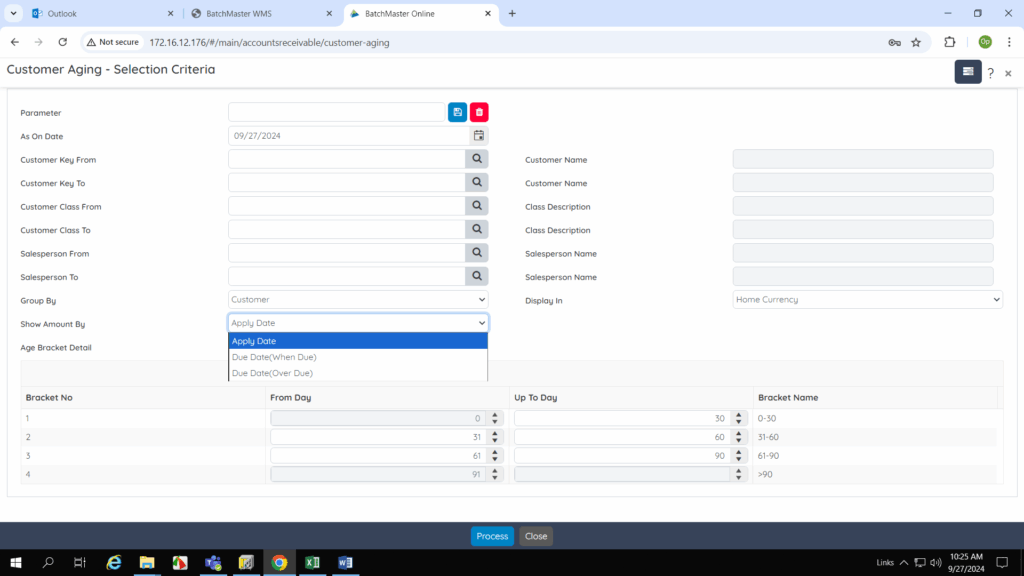
Once you click the Process button, the system generates the Customer Report as per the option selected in the Show Account By field.

Production Module
Enhancements on the Batch Ticket Screen
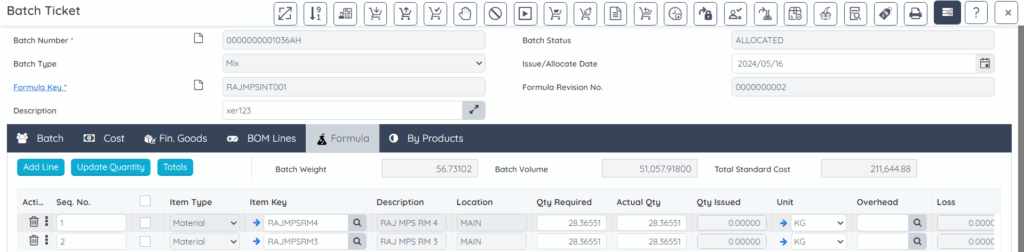
The Batch Ticket screen is enhanced to improve the organization and management of formula lines within the Batch Ticket screen by adding functionality to reorder them based on sequence numbers. The two key enhancements on the Batch Ticket screen are:
- Resequence Formula Line
 special function allows you to quickly and easily reorder formula lines according to the specified sequence numbers of the line items. This reduces manual effort and ensures accuracy in the order of the formula lines.
 - A new No. field added on the Formula tab. In order to work with the Resequence Formula Line special function button, you need to enter the sequence numbers for individual line items on the Seq. No. field available at the Formula tab. On clicking Resequence Formula Line special function, the system re-sequence the Formula tab grid lines accordingly.
This enhancement improves the organization and efficiency of managing formula lines by introducing reordering based on sequence numbers. The addition of the Resequence Formula Line special function allows you to quickly re-order formula lines in alignment with their specified sequence numbers, reducing manual effort and ensuring accuracy in the arrangement. Overall, this enhancement streamline the management of formula lines, enhance accuracy, and save time during batch preparation.
Enhancements on the Stage Order – Create Stage Order Screen
The Create Stage Order screen is now enhanced with the From Batch Start Date and To Batch Start Date fields to specify the lower/upper limit of the Batch Start Date range for filtering the list of batches as per the specified filter criteria. To open the Create Stage Order screen, you need to click on the +Create Stage Order button on the Stage Order dashboard.
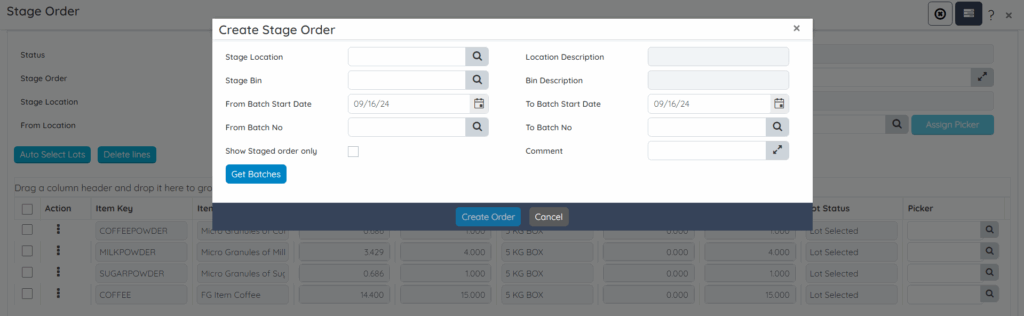
On clicking Get Batches button, the system obtains the list of batches in the grid as per the specified filter criteria.

This enhancement improve the filtering and selection of batches by introducing the From Batch Start Date and To Batch Start Date fields to narrow down and filter the list of batches based on their desired criteria. The system retrieves and displays only the batches within the defined date range, enhances efficiency, accuracy, and user convenience by providing a more focused and customizable batch filtering experience.
Enhancements on the Production Pick Order – Create Production Pick Order Screen
The Create Production Pick Order screen is now enhanced with two new fields: From Batch Start Date and To Batch Start Date. These fields allow you to specify the lower and upper limits of the Batch Start date range, enabling you to filter the list of batches more effectively based on your specified criteria. To open the Create Production Pick Order screen, you need to click the +Create Pick Order button available on the Production Pick Order dashboard.

On clicking Get Batches button, the system obtains the list of batches in the grid as per the specified filter criteria.
This enhancement improve the filtering and selection of batches by introducing the From Batch Start Date and To Batch Start Date fields to narrow down and filter the list of batches based on their desired criteria. The system retrieves and displays only the batches within the defined date range, streamlining the process of locating and managing relevant batches.
BOM Module
Introduced a new BOM Modification Utility Screen
A new BOM Modification Utility screen is introduced in BatchMaster Web under the BOM Module to create and maintain ECNs. ECNs are created to change BOMs by adding, deleting, or replacing subcomponents in the BOM or to activate and deactivate the BOM.

Common Module
Enhancement on the Approver Role Center
The Approver Role Center screen is now enhanced to include the BOM Modification Utility option in the following sections: Pending, Approved, Cancelled, and All Pending. These enhancements provide the following capabilities:
- Retrieve Pending BOM Modification Utility Records: Easily access all BOM Modification Utility records that are currently pending approval.
- Retrieve Approved BOM Modification Utility Records: View all BOM Modification Utility records that have been approved.
- Retrieve Cancelled BOM Modification Utility Records: Access all BOM Modification Utility records that have been cancelled.
- Retrieve BOM Modification Utility Records Requiring Approval: Quickly find all BOM Modification Utility records that still require approval.
This enhancement streamlines the approval process by providing easy access to all relevant BOM Modification Utility records within the Approver Role Center screen.

R and D Module
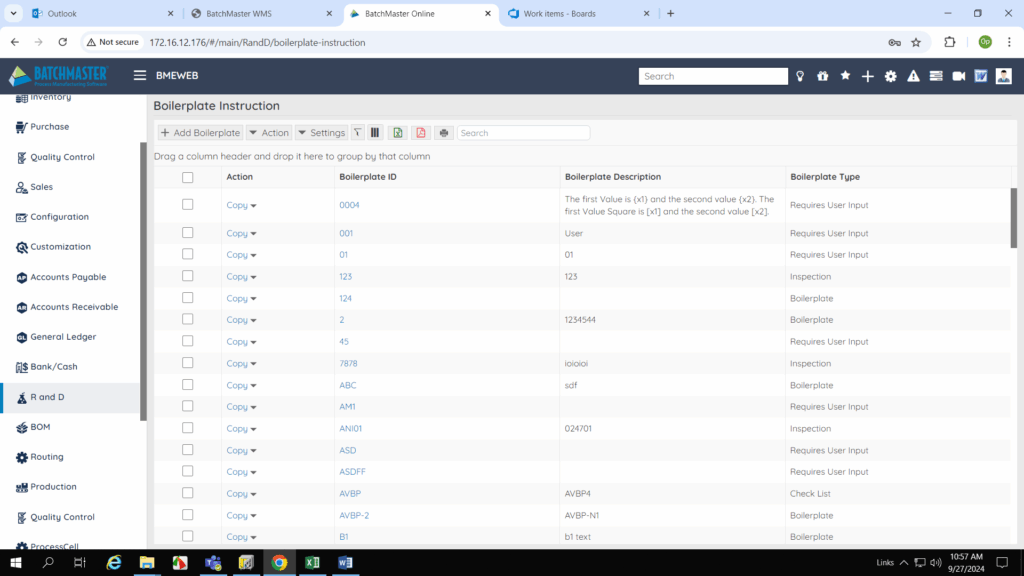
Enhancement on the Boilerplate Instruction Dashboard
The Boilerplate Instruction dashboard now includes the Boilerplate Type field, which displays the classification required to build any boilerplate for the manufacturing process. Including the Boilerplate Type field simplifies and streamlines the classification process for manufacturing boilerplates.
This feature ensures that you can identify and manage the specific requirements for different boilerplates with greater efficiency. Different types, such as boilerplates, checklists, inspections, or user input, may be needed for different batches.
Customization Module
Enhancement 1 on the Report Generation Screen
The Report Generation screen is enhanced with the Excel Report option available under the Report Type field. When you select Excel Report option in the Report Type field, Excel Template and Excel Datasheet fields appear.
- Using the Excel Template field you can select the report format template for generating the report. This field is applicable if Excel Report option is selected in the Report Type
- Using the Excel Datasheet field specify the data sheet name for printing the report. This field is applicable if Excel Report option is selected in the Report Type field.

Enhancement 2 on the Report Generation Screen
The Query Editor screen is enhanced with the Hyperlink button to create hyperlink for the generated dashboard. On clicking Hyperlink button, the system displays Hyperlink screen wherein you can specify Screen Name and Display Drilldown Fields.
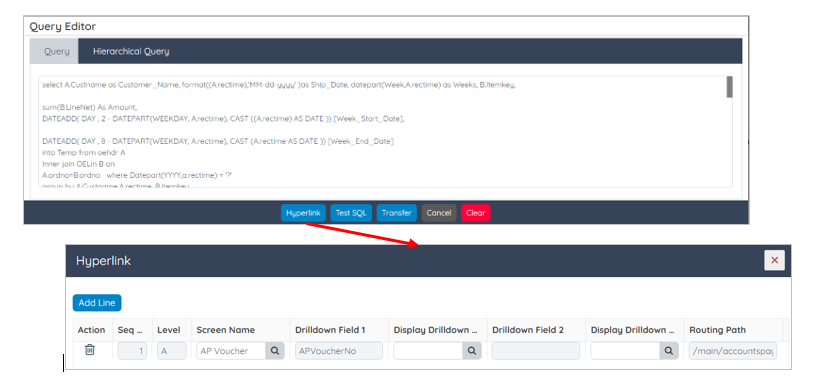
The attached Hyperlinks are accessible on the Hierarchical Query tab by clicking the Hyperlink button available on the Action field at the Query Editor screen.

This enhancement on Query Editor screen facilitate better navigation and data interaction within generated dashboards by introducing a Hyperlink button. This button enables you to create hyperlinks that link to specific screens and drill-down fields for deeper analysis.
Overall, it improves usability by enabling seamless navigation and enhancing the analytical capabilities of dashboards through interactive drill-down options. A similar enhancement is applicable to the Analytical Pivot Dashboard, Dashboard Master, and Alert Setup screens as well.
Administration Module
Enhancement on the Tenant Setup Screen
The Tenant Setup screen is enhanced with the grid wherein you can specify the user group for associating with the tenant, defining the roles or privileges for that group. The User Group lookup obtains those user groups that are assigned by the tenant super admin user for the tenant. This implies that the tenant has limited access to the purchased BatchMaster Web functionalities (modules/screens).
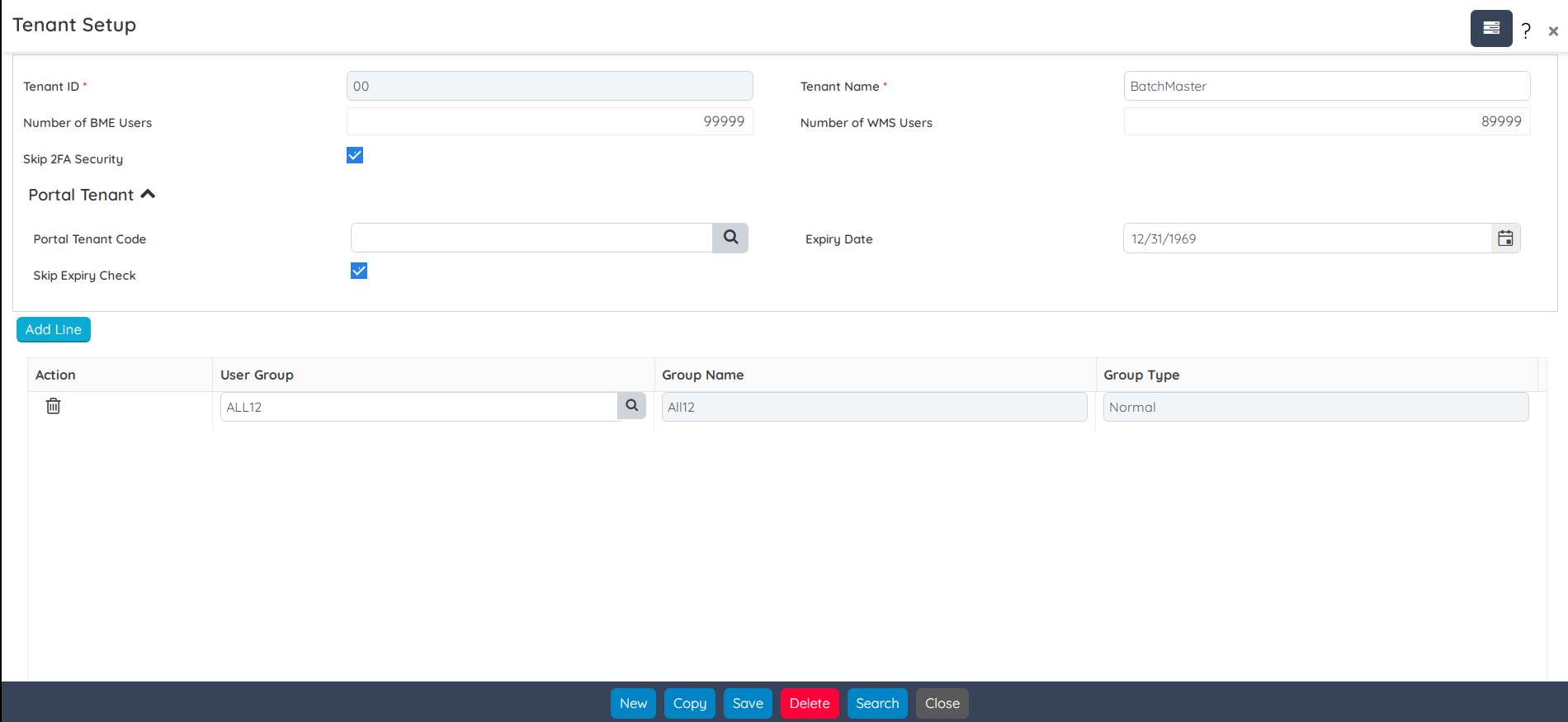
This enhancement provides the following advantages:
- Greater control and flexibility in managing user access by introducing a grid for associating user groups with specific tenants.
- Improves security, user management, and operational efficiency by aligning access permissions with tenant-specific requirements.
Enhancement on the User Group Setup Screen
The User Group Setup screen now refers to the process of organizing users and Administrators/Tenants into specific groups based on their roles, responsibilities, and access needs within the BatchMaster WEB environment. This setup is crucial for managing permissions and ensuring security and efficiency. The Group ID field now supports selection of Tenant ID.

Before defining the group identification number it is essential to select the Tenant ID that is a mandatory field.

Clicking the lookup button now displays the Tenant ID lookup to choose the respective Tenant / Administrator for the User Group Setup.

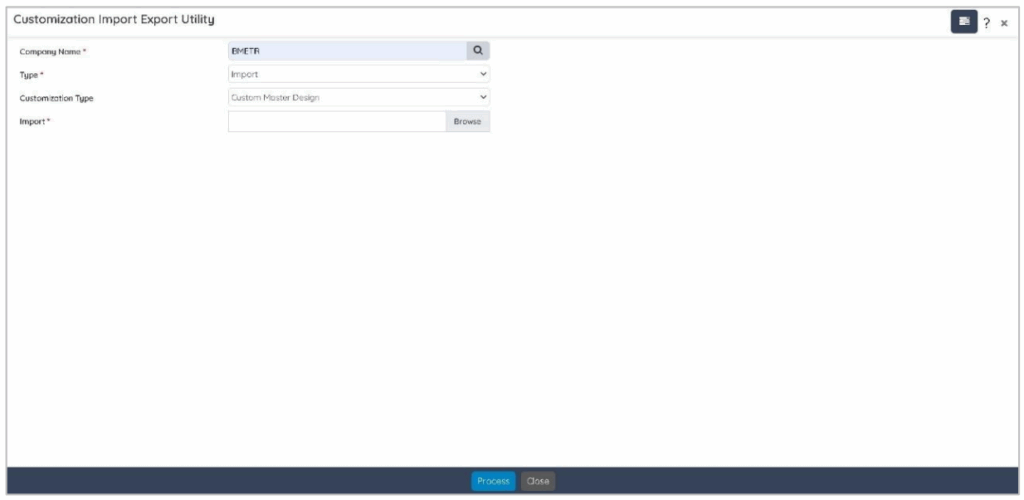
Introduced a new Customization Import Export Utility Screen
A new Customization Import Export Utility screen is introduced in BatchMaster Web under the Administration Module to import or export various customization types for the selected BatchMaster Web Company. This is a utility that helps you to manage and migrate configuration data across different companies.
This Customization Import Export Utility is primarily used by administrators or technical users who are authorized to migrate configuration settings and customizations across different BatchMaster Web companies.
Enhancement on the Custom Field Configuration Screen
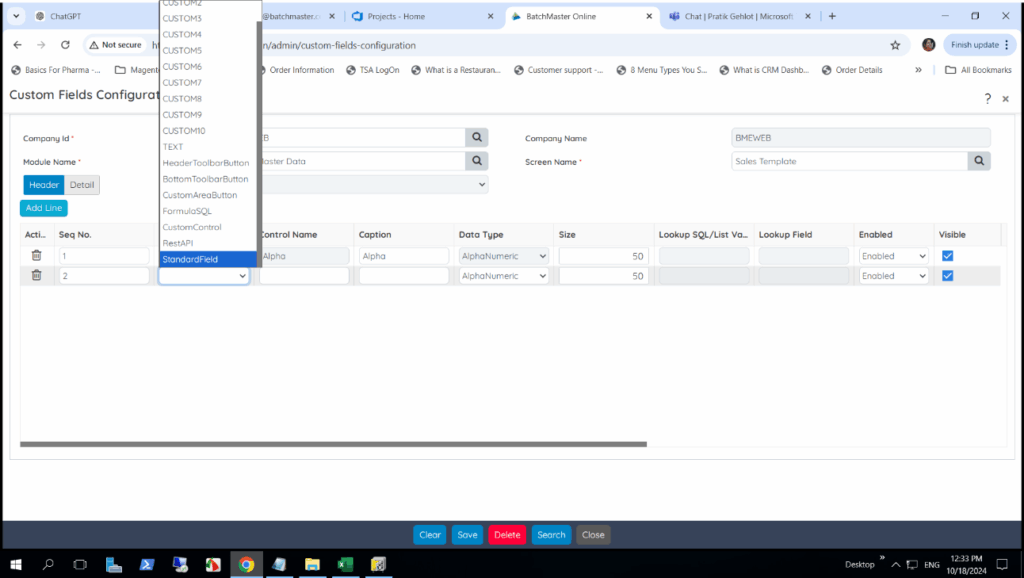
The Custom Field Configuration screen is enhanced with the Standard Field option, i.e., available under the grid Field at the Details tab. A new Standard Field option is now available, enabling the transfer of lookup field values into both standard system fields as well as custom fields. This enhancement increases flexibility by allowing the integration of custom lookup values into predefined fields in the system.
Enhancement on the BatchMaster Company Information (Mfg Company Setup) Screen
The BatchMaster Company Information (Mfg Company Setup) screen is enhanced with the Xero option available under the Custom Finance Name option. On selecting Custom Finance option under the Finance Package field, Custom Finance Name option appears. This enhancement enables you to use Xero option to seamlessly integrate with BatchMaster, ensuring that financial data can be accurately mapped and synchronized with their existing system, thus improving operational efficiency and financial accuracy.

Inventory Module
Enhancements on the WH Transfer Out/Move Screen
The WH Transfer Out & Move screen is enhanced with the various icons available under the grid actions:
- Select Serial/Lot

- Change Bin No For Move In
- View Item Location

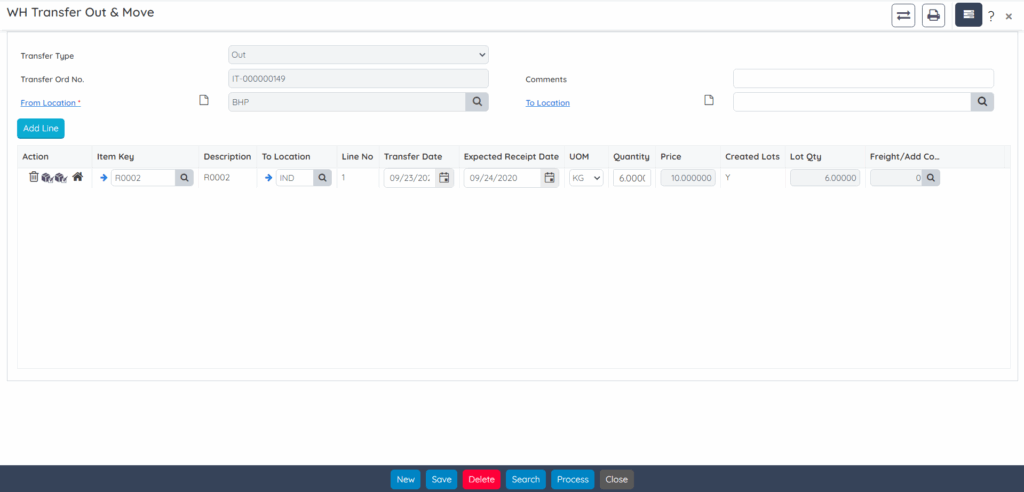
This enhancement enables the improvement towards the user experience and streamlines warehouse management processes by adding several new icons under the grid actions. These added icons provide quick and easy access to recognize action functions.
A similar change is applicable to the Batch Ticket, Order Post Inventory QC, Purchase QC, Sales QC, and Inventory QC screens as well.
Finance Module
Introduced a new Xero Configuration Screen
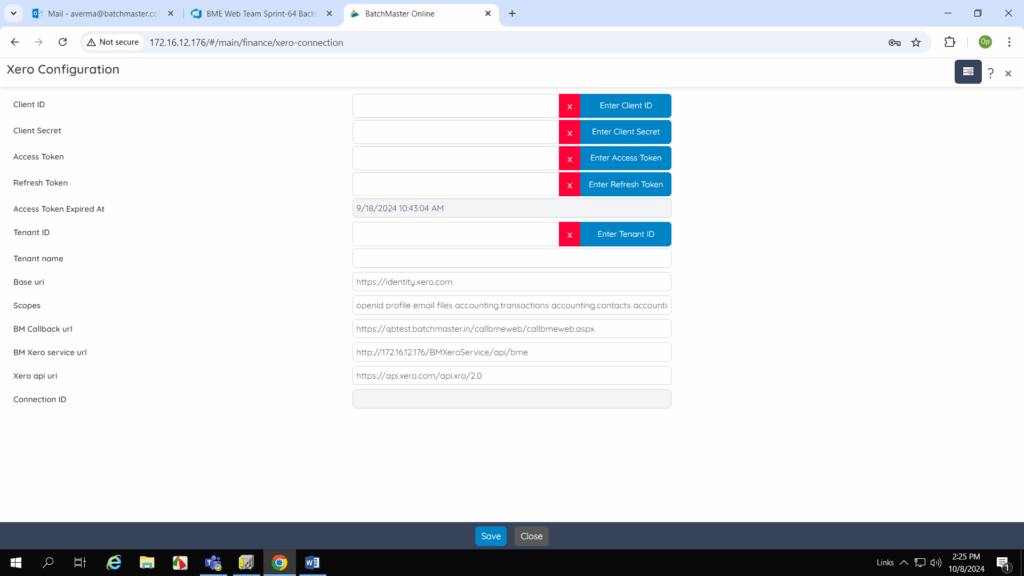
A new Xero Configuration screen is introduced in BatchMaster Web under the Finance Module to set up a link between Xero and the BatchMaster Web application by configuring the necessary credentials and URLs. By maintaining data on this screen, BatchMaster Web access retrieves and interacts with financial information that is handled in Xero.
Sales Module
Enhancement on Ship To Information Screen
The Ship To Information screen is enhanced for integrating Google’s Geocoding API to enable address validation. The goal of the Address Validation feature is to ensure that all addresses entered into the system are accurate and standardized, leading to improved data consistency, delivery efficiency, and enhanced customer satisfaction. Address Validation features enhance the overall data quality, streamline operations, and provide a seamless experience for users while managing shipping information.

The Validate Address button is visible on the Ship To Information screen when the Validate Address Implementation field value is set to Yes under Common Setup option – Validate Address Defaults section on the Module Setup screen. The system performs address validation only when you maintain a valid API Key and API Endpoint default values.

Say, for instance, let us enter an address in the respective address fields such as Address Line 1, City, State, Zip Code, and Country.

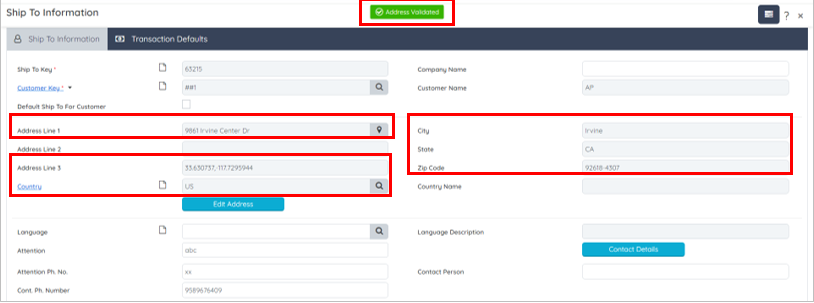
On clicking Validate Address button, the system displays a message Address Validated. Eventually, the wrongly entered address gets corrected in the Address Line 1, City, State, County, and Zip Code fields. Moreover, the Latitude, and Longitude values gets defaulted to the Address Line 3 field with the nomenclature as “<Latitude Value>, <Longitude Value>” as shown below:
Note that the system allows you to save only the validated address. The Map  button is only available after validating the address. Otherwise, the system displays an error message as shown below:

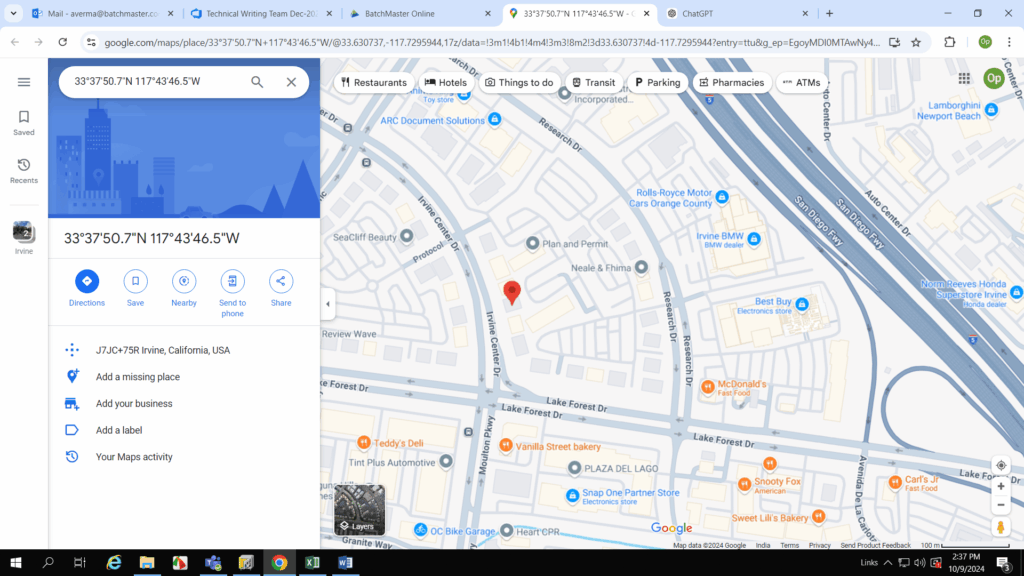
On clicking Map button next to the Address Line 1 field, entered address is located on the google maps for visualizing exact geographic location as shown below:
If required, you can edit the validated address by clicking the Edit Address button. The Edit Address button only appears after validating the entered address.


A similar Address Validation feature is applicable to the following BatchMaster Web screens:
- Location
- Customer
- Sales Order Entry
- Quotation/Sales Requisition
- Direct Invoice/Credit Memo
- Super Invoice
Introduced a New GST Reconciliation Screen
A new GST Reconciliation screen is introduced in BatchMaster Web under the Sales Module to upload Sales Register and Purchase Register entries for the specified criteria to the Logitax Portal directly without doing a login to the portal. Using this screen you can view the status of data upload. The GST reconciliation is to ensure that all GST-related data is accurate and up-to-date, facilitating smooth compliance with tax regulations.

Bank/Cash Module
Enhancements on the Transaction Reconciliation Screen
The Transaction Reconciliation screen has following enhancements:
- Added the Import From Excel File field for importing transactional data from an external Excel file. This field also supports the automatic reconciliation of transactions by comparing the imported excel transactional data with existing system records, thus skipping manual data entry and improving the accuracy and efficiency of the reconciliation process.

- Added the Before Reconciliation Excel and After Reconciliation Excel These grids are used when reconciliation is performed after uploading an excel file with the appropriate column mapping.
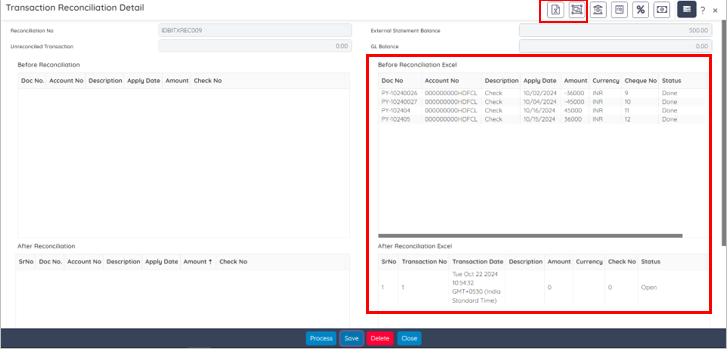
- Added two new special functions Excel Mapping
 and Auto Reconciliation
The Excel Mapping function aligns and maps the formats of both statements (the existing system statement and the Excel statement to be imported). Meanwhile, the Auto Reconciliation function automatically reconciles statements based on your selections.
These enhancements on the Transaction Reconciliation Detail screen automate and streamline the reconciliation process, improving efficiency and accuracy. You can now import transactional data from an Excel file, reducing manual entry and enabling automatic reconciliation with existing system records. Enhanced grids display data before and after reconciliation, ensuring accurate mapping. Additionally, the Excel Mapping function aligns the formats of the system and imported statements, while the Auto Reconciliation function automates reconciliation based on your selections, further enhancing speed and accuracy.