

BatchMaster Web Enhancement Document (SP0926)
Introduction
This New Feature Guide describes the enhancements delivered in the September 2026 Service Pack (SP-0926) for BME Web. The release focuses on improving self-service capabilities, financial reporting flexibility, operational controls, integration quality, and AI configuration options.
Each section below provides a clear description of the feature, key details, and the primary benefits for users and the organization.
Feature Overview
The following table summarizes all enhancements included in this Service Pack:
| # | Feature | Screen / Area |
| 1. | Net Cash Flow | Cash Flow Statement |
| 2. | Financial Statement Format Setup | Income Statement, Balance Sheet |
| 3. | Super Invoice – Sales Order Lookup | Super Invoice |
| 4. | Inventory – User ID on Transaction Activity Report | Inventory |
| 5. | AI Configuration – Customer Azure OpenAI Credentials | Module Setup – AI – Configuration |
| 6. | RM Weighing – Manual Weighing Label Generation | RM Weighing |
| 7. | Lot Recall / Traceability Report Enhancements | Lot Recall/ Traceability Report |
| 8. | PO Receipt & Shipment – Upper Quantity Tolerance Control | PO Receipt and Shipment |
| 9. | Purchase Order Entry – Force Close PO Lines | Purchase Order Entry |
| 10. | Deviation Management – Root Cause | Deviation Management |
| 11. | PO and SO – Editable Seq No. Field | Purchase Order Entry and Sales Order Entry |
| 12. | Payment Entry/ Receipt Entry – “Insert Line” button for “Against Reference” | Payment Entry |
| 13. | CAPA – Related Deviation | CAPA screen |
| 14. | BM Pilot – Opportunity and Sales Order | Sales Order Entry and Sales Opportunity Transaction |
| 15. | Lot Explosion and Where Used – Serial Lot Maintenance | Serial Lot Maintenance |
| 16. | Editable Account Group Name field – Account Group Master | Account Group Master |
| 17. | Create Automatic Deviation | EBT |
| 18. | Changes at Request for Quote | Request for Quote |
Detailed Feature Descriptions
Net Cash Flow – Direct & Indirect Methods
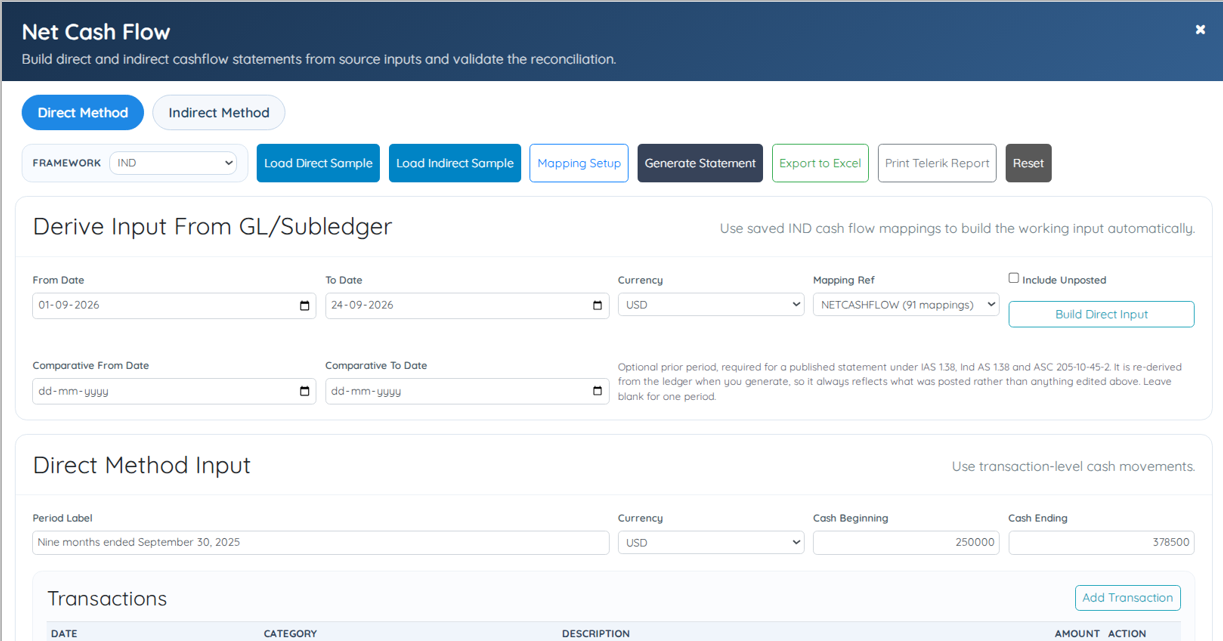
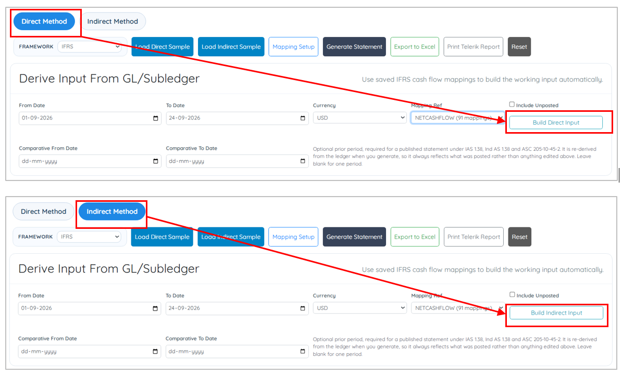
Users can now generate the Cash Flow Statement using either the Direct or Indirect method. This flexibility allows businesses to prepare cash flow reporting according to their applicable accounting and reporting requirements.
Key Details
- Choose between the Direct Method and Indirect Method when generating the statement.
- Provides support for Cash Flow Statement reporting under US GAAP, IFRS, and Indian Accounting Standards.
Benefits
- Provides flexibility in preparing Cash Flow Statements based on the organization’s reporting preferences.
- Simplifies financial reporting by offering multiple Cash Flow Statement presentation options.
- Provides stakeholders with clearer and more flexible financial reporting.
Financial Statement Format Setup
A new Financial Statement Format Setup screen is now introduced to create and maintain custom templates that control the layout and structure of Balance Sheet and Income Statement reports.
You can define account groupings, display order, labels, calculated totals, and groups to exclude, creating separate formats for each statement type so each report can have its own presentation style. Once saved, a format can be selected when generating the corresponding financial statement for consistent, customized reporting.
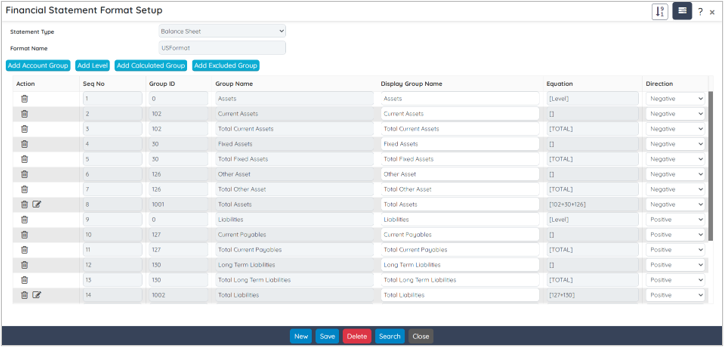
Using this screen you can control the sequence and display order of statement components, create and maintain multiple formats, build hierarchical levels, define calculated groups with equations and formulas, specify the statement type (Balance Sheet or Income Statement), exclude selected groups from calculations and presentation, include account groups in the reporting structure, specify direction as positive or negative for the respective balances and insert Profit & Loss balances for Balance Sheet formats.
Super Invoice – Sales Order Lookup
Screen / Area: Super Invoice
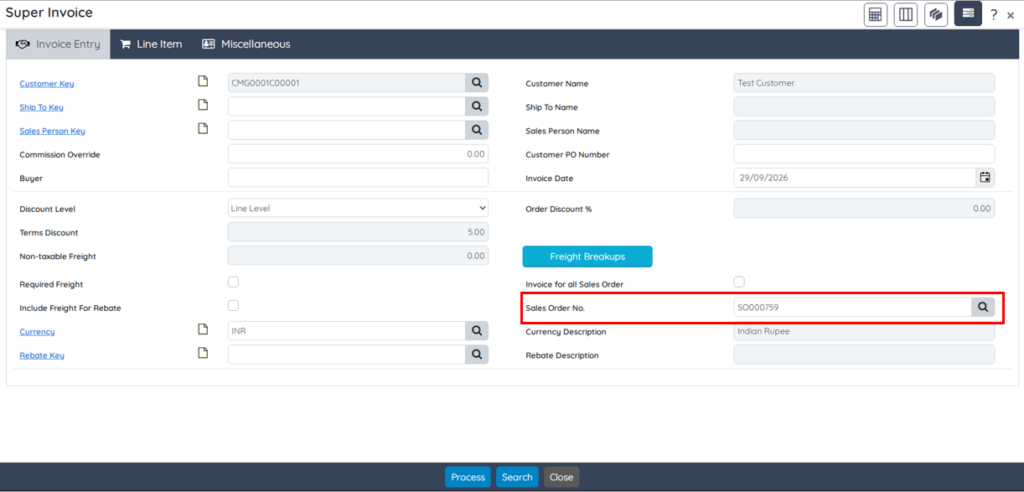
A Sales Order No. lookup has been added on the Invoice Entry tab of the Super Invoice screen. Users can select a single Sales Order for invoicing; all lines from the selected Sales Order are automatically added to the Line Item tab. The lookup also displays the Customer PO# for easy reference.
Benefits
- Faster and more accurate invoice creation from Sales Orders.
- Reduced data entry and risk of missing lines.
- Improved visibility of Customer PO numbers during invoicing.
Inventory – User ID on Transaction Activity Report
Screen / Area: Inventory
The Transaction Activity Report now displays the User ID against each transaction. This provides better visibility into who performed each inventory-related activity.

Key Details
- User ID column added to the Transaction Activity Report.
- Enables clearer audit trails and accountability for inventory movements.
Benefits
- Enhanced auditability of inventory transactions.
- Easier identification of users responsible for specific activities.
- Improved internal controls and troubleshooting.
AI Configuration – Customer Azure OpenAI Credentials
Screen / Area: AI – Configuration
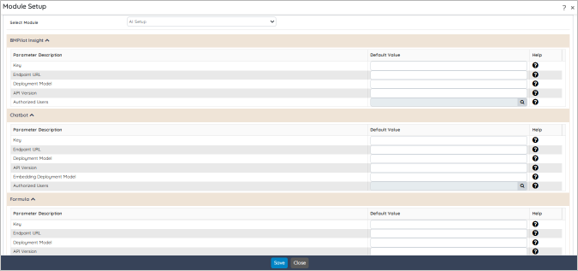
BME Web now supports customer-provided Azure OpenAI credentials for AI-enabled functionalities. Organizations can use their own Azure OpenAI service, giving them greater control over credentials, model usage, and billing.
Key Details
- Configure and use your own Azure OpenAI credentials within BME Web.
- Supports better governance of AI usage and cost management.
- Authorized Users – Specify the users authorized to access and use this feature; only the selected users will be granted permission to utilize its functionality.
Benefits
- Full control over AI credentials and access.
- Alignment of AI usage with your own Azure subscription and billing.
- Greater flexibility in model selection and governance.
RM Weighing – Manual Weighing Label Generation
Screen / Area: RM Weighing
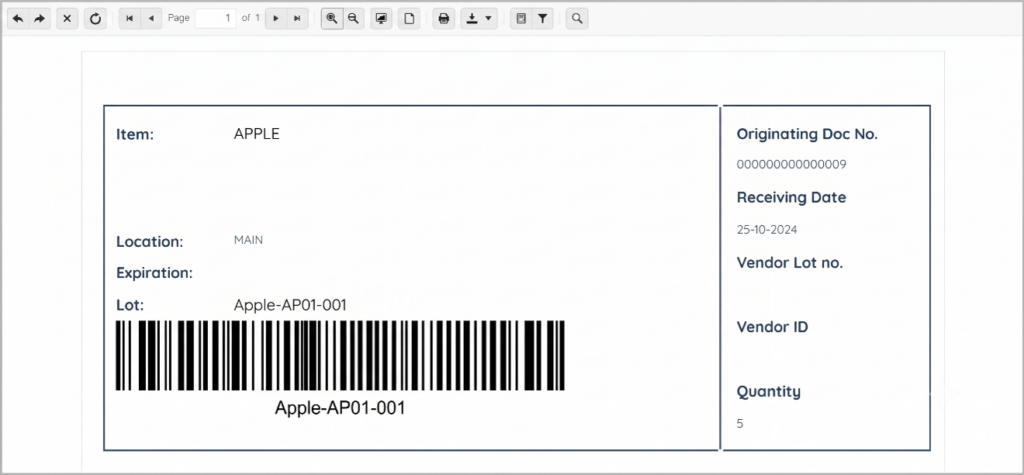
Users can now manually generate Weighing Labels for required items directly from the RM Weighing screen. This provides greater flexibility to produce labels as needed, independent of the automatic process.
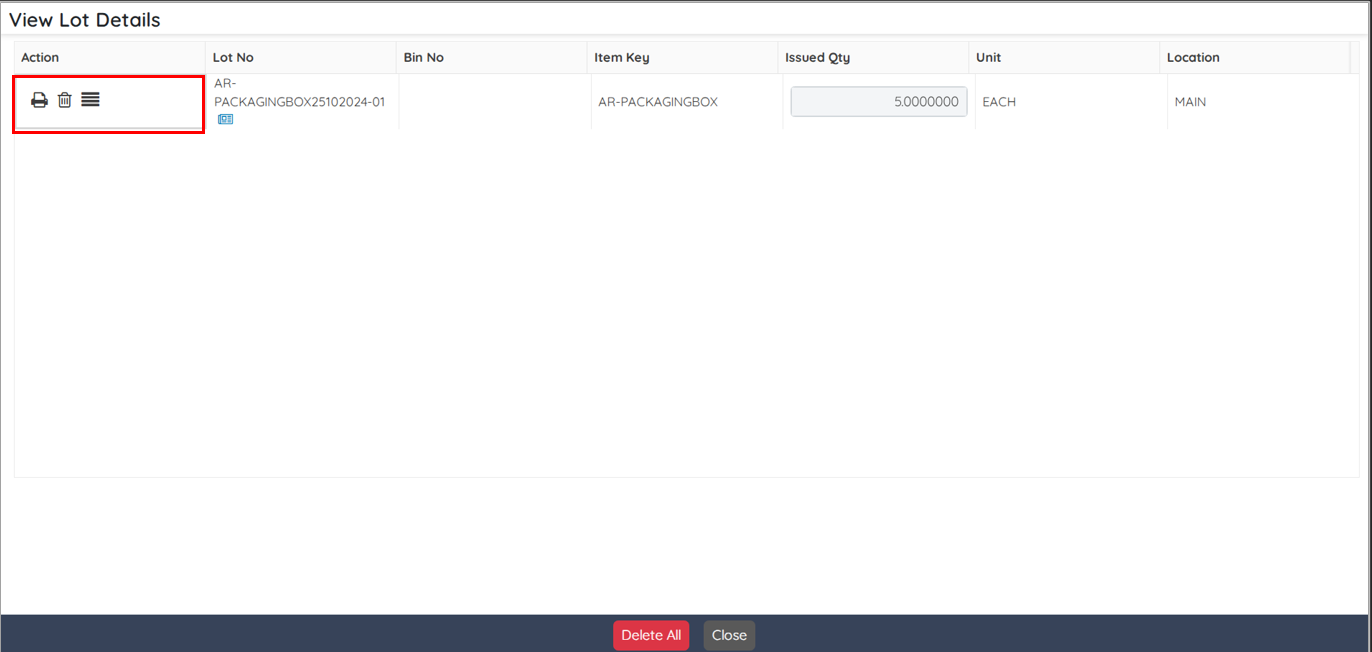
The printed lot details are shown below:
Key Details
- Manual generation of Weighing Labels is available from the RM Weighing screen which can help user re-print the Labels.
- Labels can be created for the specific items required at the time.
Benefits
- On-demand label printing when needed.
- Greater operational flexibility on the shop floor or warehouse.
Lot Recall / Traceability Report Enhancements
Screen / Area: Lot Recall/ Traceability Report
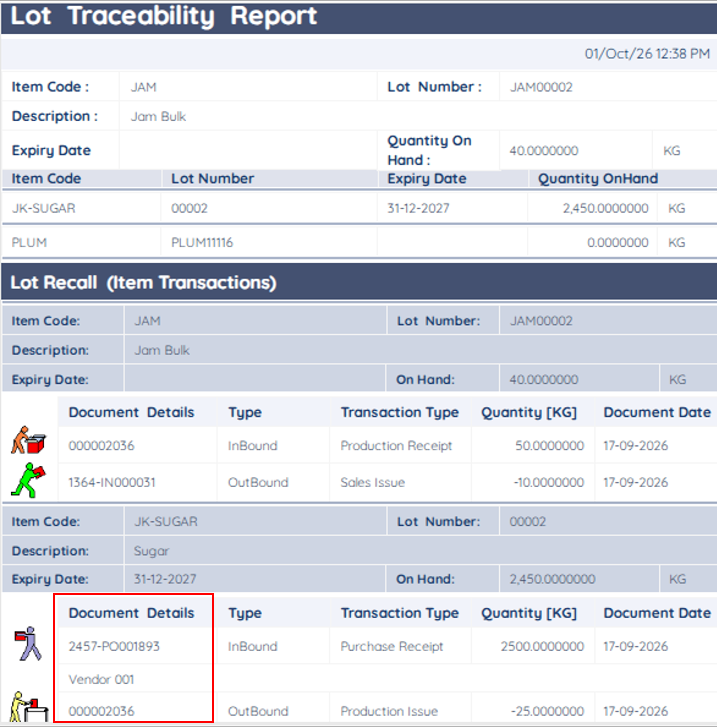
The Lot Recall / Lot Traceability Report has been enhanced to include additional key details: Quantity, PO/SO Number for Purchase Receipts and Sales Shipments, and Vendor/Customer details for Purchase and Sales transactions. These additions provide greater visibility into lot movement and related transaction information.
Key Details
- Quantity is now shown for relevant transactions.
- PO/SO numbers appear for Purchase Receipts and Sales Shipments.
- Vendor and Customer details are included for Purchase and Sales transactions.
Benefits
- Richer lot movement and traceability information in one place.
- Faster investigation during recalls or quality issues.
- Improved compliance and audit readiness.
PO Receipt & Shipment – Upper Quantity Tolerance Control
Screen / Area: PO Receipt and Shipment
Upper quantity tolerance control has been introduced for Purchase Receipts and Sales Shipments. This allows greater flexibility when receiving or shipping quantities above the remaining ordered quantity. Users can configure separate tolerance limits for Purchase and Sales transactions.
Purchase Setup -> Receipt Options.

- On the Allow Receipt of More than Remaining field a new Yes with Tolerance option is now added. When this option is selected, the system permits receiving a quantity greater than the remaining quantity, but only up to a defined upper percentage limit configured in the Tolerance% field.
- A new Tolerance % field is now provided. This parameter lets you define the maximum allowable upper percentage limit for over-receiving goods beyond the remaining quantity of a Purchase Order line.
Sales Setup -> Shipment Options
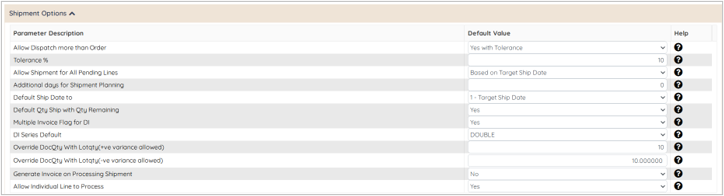
- On the Allow Dispatch more than Order field a new Yes With Tolerance option is now added. When this option is selected, the system permits over-shipment beyond the remaining quantity, but restricts it up to a specified upper percentage threshold specified in the Tolerance field.
- A new Tolerance % is now provided. This parameter lets you define the maximum upper percentage dispatch limit by which a shipment line can exceed the remaining quantity of the Sales Order line.
Key Details
- Configurable upper quantity tolerance for Purchase Receipts.
- Configurable upper quantity tolerance for Sales Shipments.
- Separate limits can be set for Purchase versus Sales processes.
Benefits
- Ability to handle over-receipts and over-shipments within controlled limits.
- Reduced need for manual workarounds or order adjustments.
- Better alignment with real-world receiving and shipping practices.
Purchase Order Entry – Force Close PO Lines
Screen / Area: Purchase Order Entry
Users can force-close a PO line when the received quantity is less than the ordered quantity. This provides greater flexibility in managing partially received purchase order lines that will not be completed.
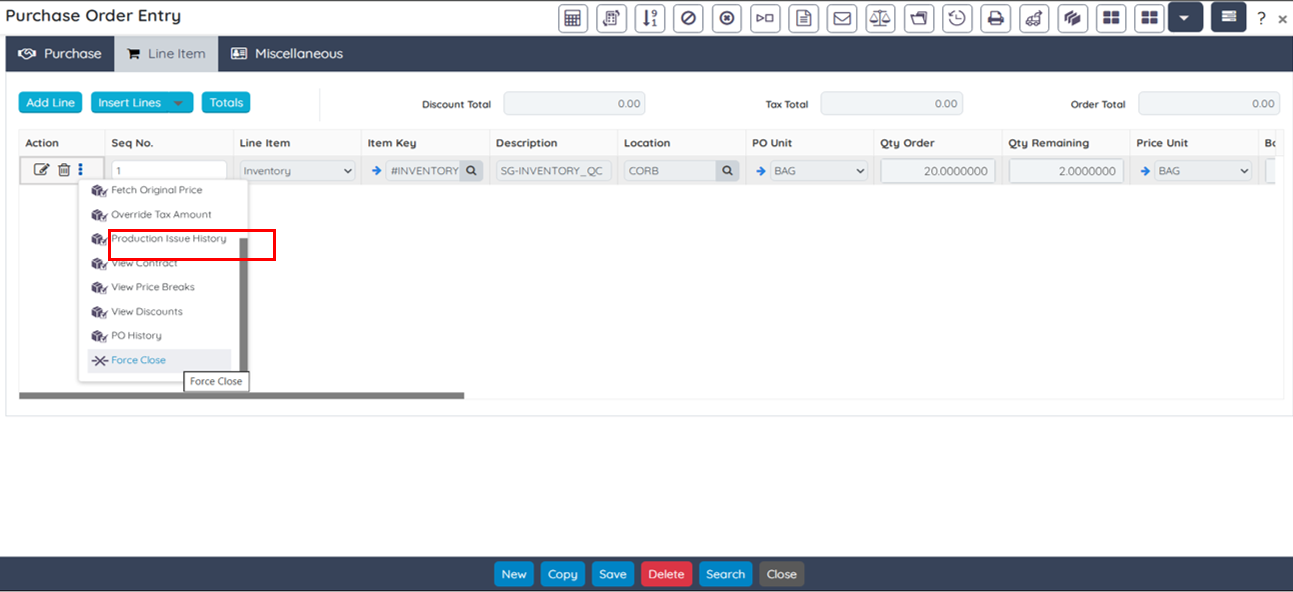
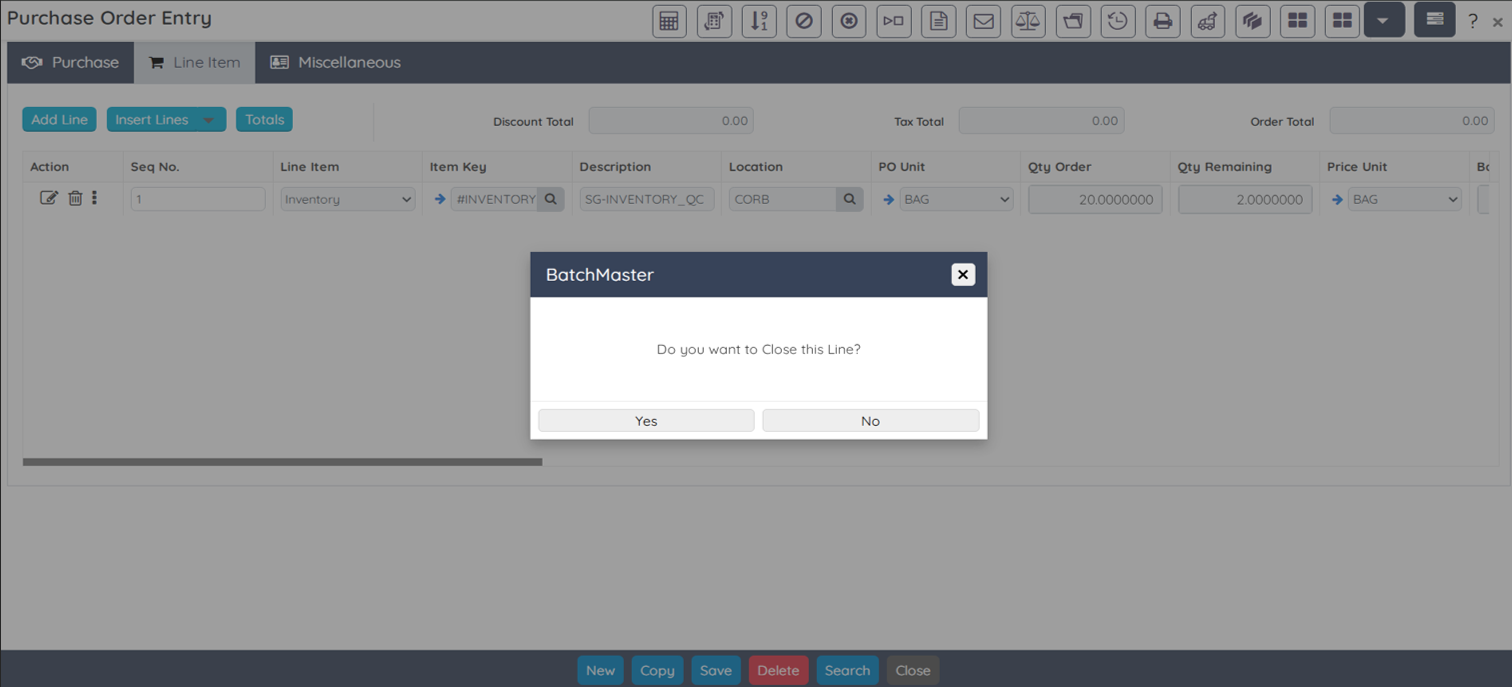
A confirmation dialog appears: “Do you want to Close this Line?” Click Yes to proceed.
Key Details
- Force-close capability for PO lines with partial receipts.
- Useful when remaining quantity will not be received.
Benefits
- Cleaner open order management.
- Ability to close incomplete lines without receiving remaining quantity.
- Improved purchasing and inventory control processes.
Deviation Management – Root Cause
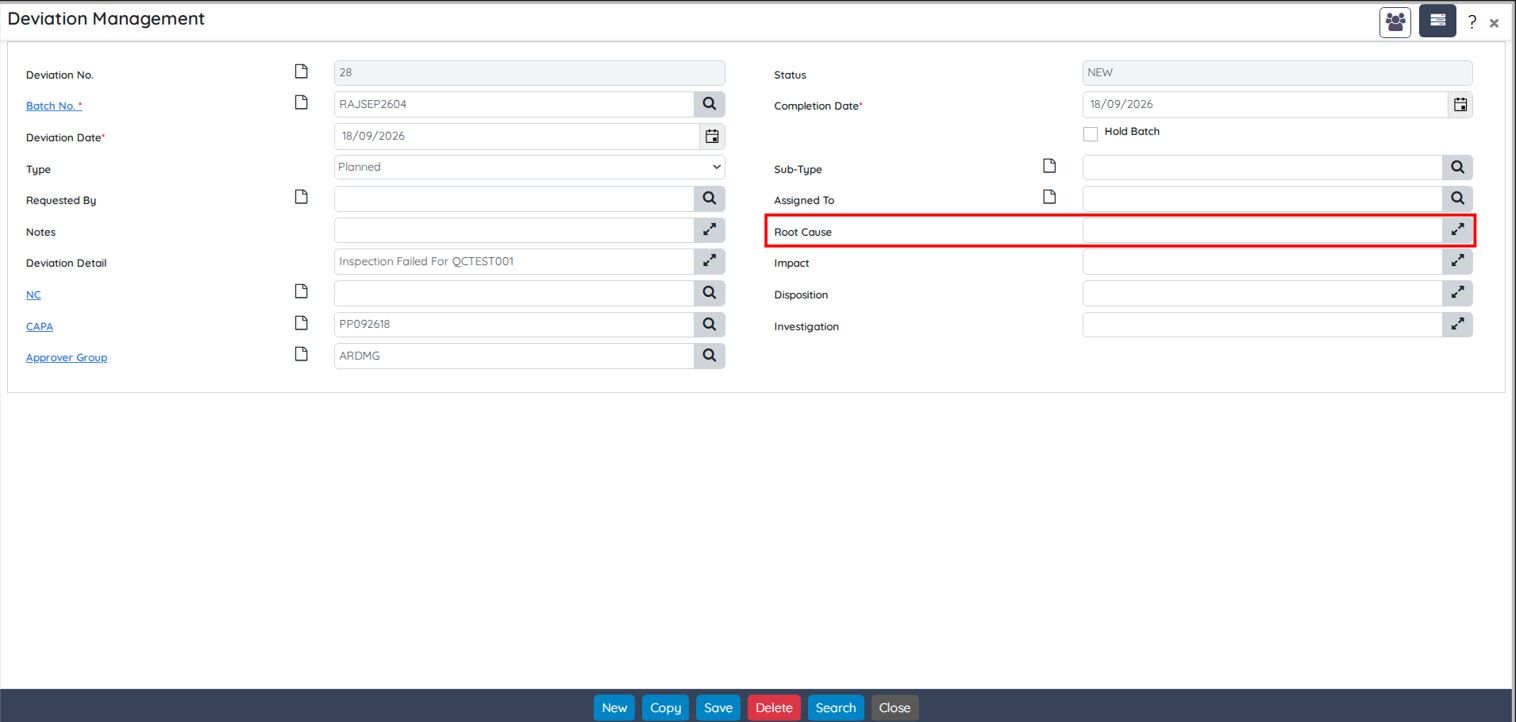
The existing Reason field has been captioned as Root Cause on the Deviation Management screen in BatchMaster Web, allowing users to capture and document the underlying cause of a deviation directly within the record. This enhancement supports more complete investigation tracking by enabling teams to record root cause details along with the information about impact, disposition, and investigation, helping improve analysis, corrective actions, and long-term process improvement.
PO and SO – Editable Seq No. Field
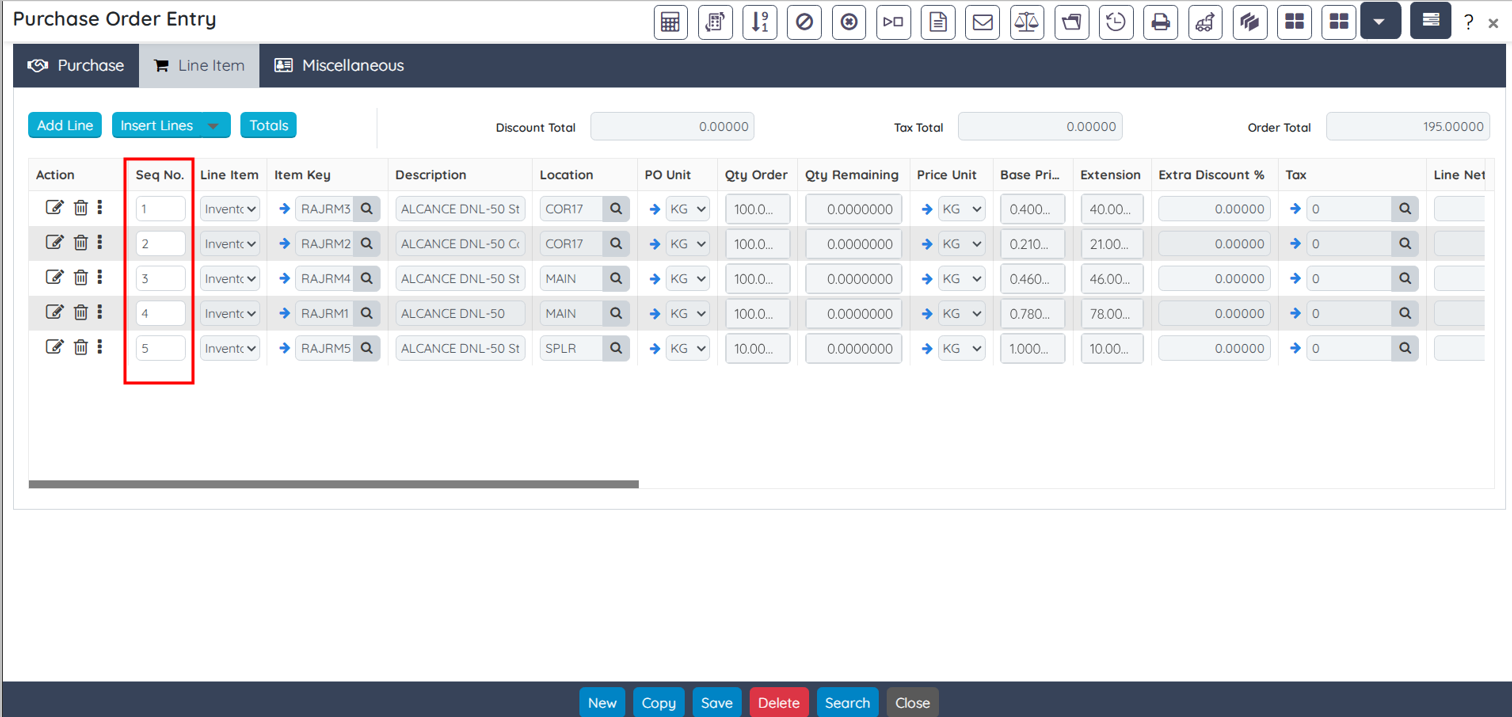
The Sequence Number (Seq No.) field is now editable on the Purchase Order Entry / Sales Order Entry screen, enabling users to re-sequence line items as needed. This field is useful for changing the order of line items, giving greater control over the presentation and organization of purchase order / sales order lines.
Payment Entry and Receipt Entry – “Insert Line” button for “Against Reference”
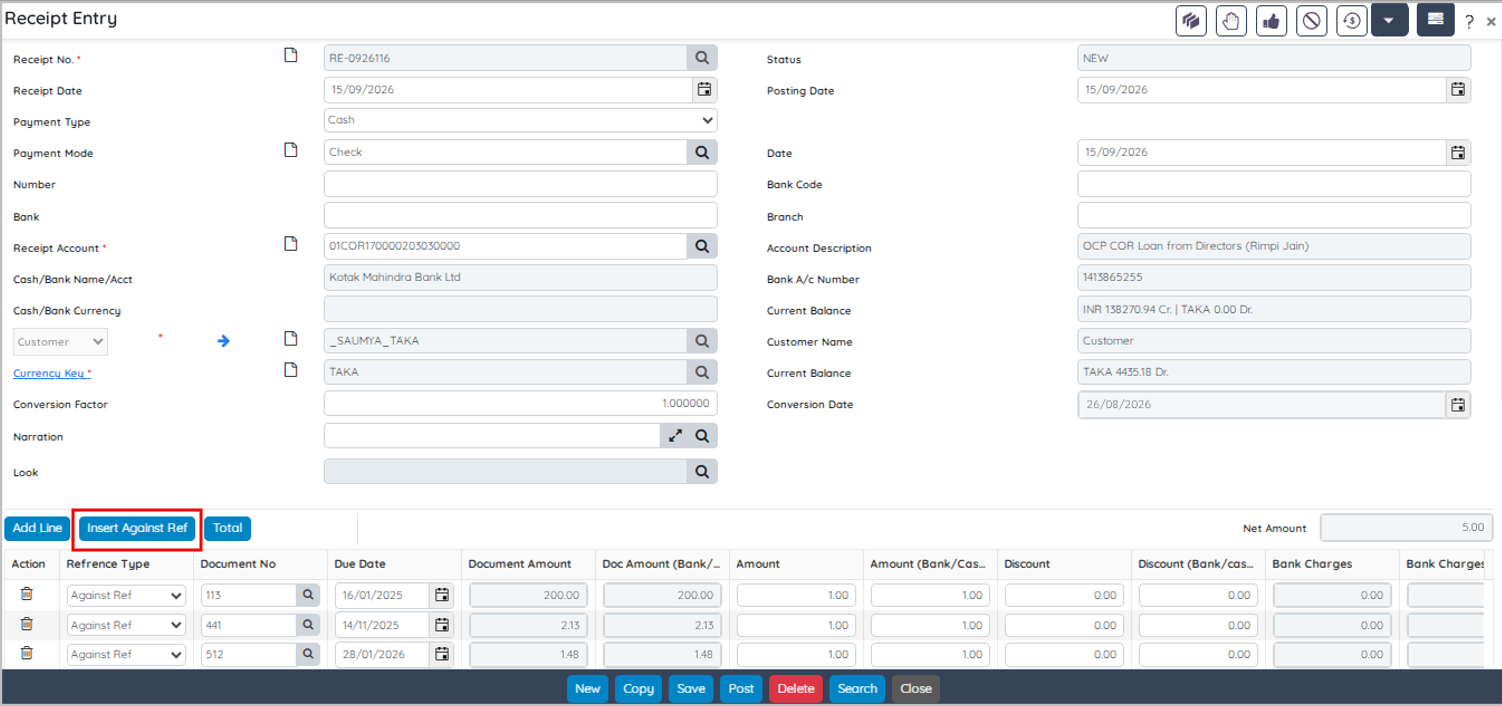
A new Insert Against Ref button is now added to the Payment Entry screen, allowing users to select one or more voucher(s) in a single go. Clicking the Insert Against Ref button opens the Voucher screen, from which the required voucher record(s) can be selected and inserted in the grid. A similar enhancement is applicable for Receipt Entry screen as well.
Payment Entry:

Receipt Entry:
CAPA – Related Deviation
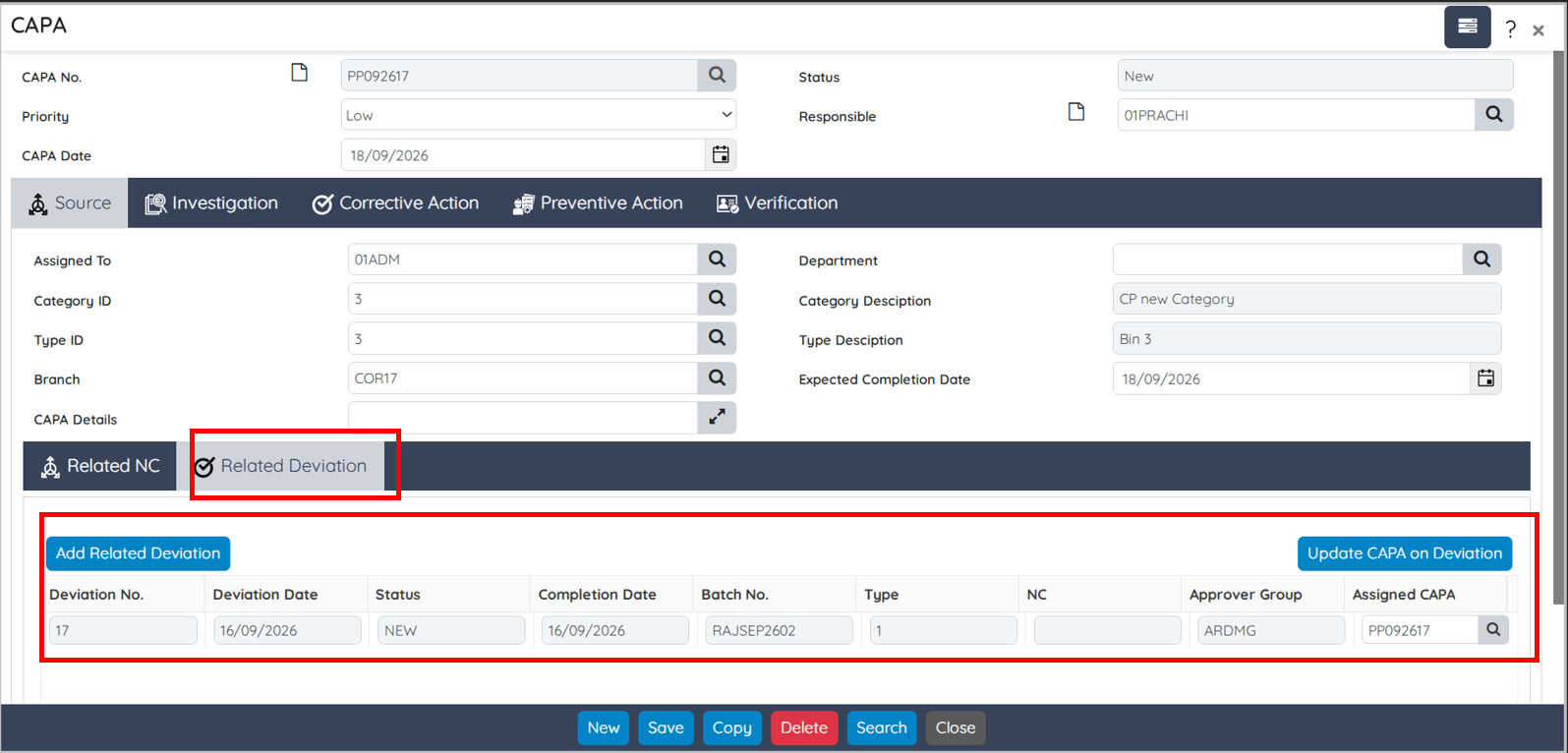
A new Related Deviation tab is now introduced on the CAPA screen in BatchMaster Web, enabling users to link and manage related deviations directly within a CAPA record. From this tab, you can add related deviations, view key details such as Deviation No., Deviation Date, Status, etc. and update the CAPA association on Deviation – providing a clearer connection between CAPAs and Deviations for improved tracking and resolution.
BM Pilot – Opportunity and Sales Order
BMPilot is a new AI-powered assistant built into BatchMaster ERP (BME Web 9.01) that lets users create Sales Opportunities and Sales Orders by describing the transaction in ordinary language, dictating it by voice, or attaching a document containing required details.
BM Pilot provides built-in Insights, enabling users to retrieve information through conversational queries or predefined guided actions for quick access to business data.
| Assistant | Where you open it | What it produces |
| BM Pilot – Create Opportunity | CRM → Sales Opportunity Transaction (list screen) | A Sales Opportunity with product interest lines, either created directly or handed to the Opportunity Transaction screen |
| BM Pilot – Order Booking Agent | Sales → Sales Order (list screen) | A Sales Order header and lines, handed to Sales Order Entry for review and saving |
The Create Opportunity assistant and the Order Booking Agent both generate editable drafts that are validated against master data for parties, salespeople, and items, display confidence signals for matched values, and never save anything until the user reviews and confirms. Users can resolve unmatched fields, review warnings (including possible duplicates) and transfer drafts to the standard transaction screens.
Lot Explosion and Where Used – Serial Lot Maintenance
Line-level actions for Lot Explosion and Where Used are now added to the Serial Lot Maintenance screen, enabling users to quickly check details for the respective lot. Clicking either action button generates the Lot Explosion or Where Used report for that lot in a new tab.
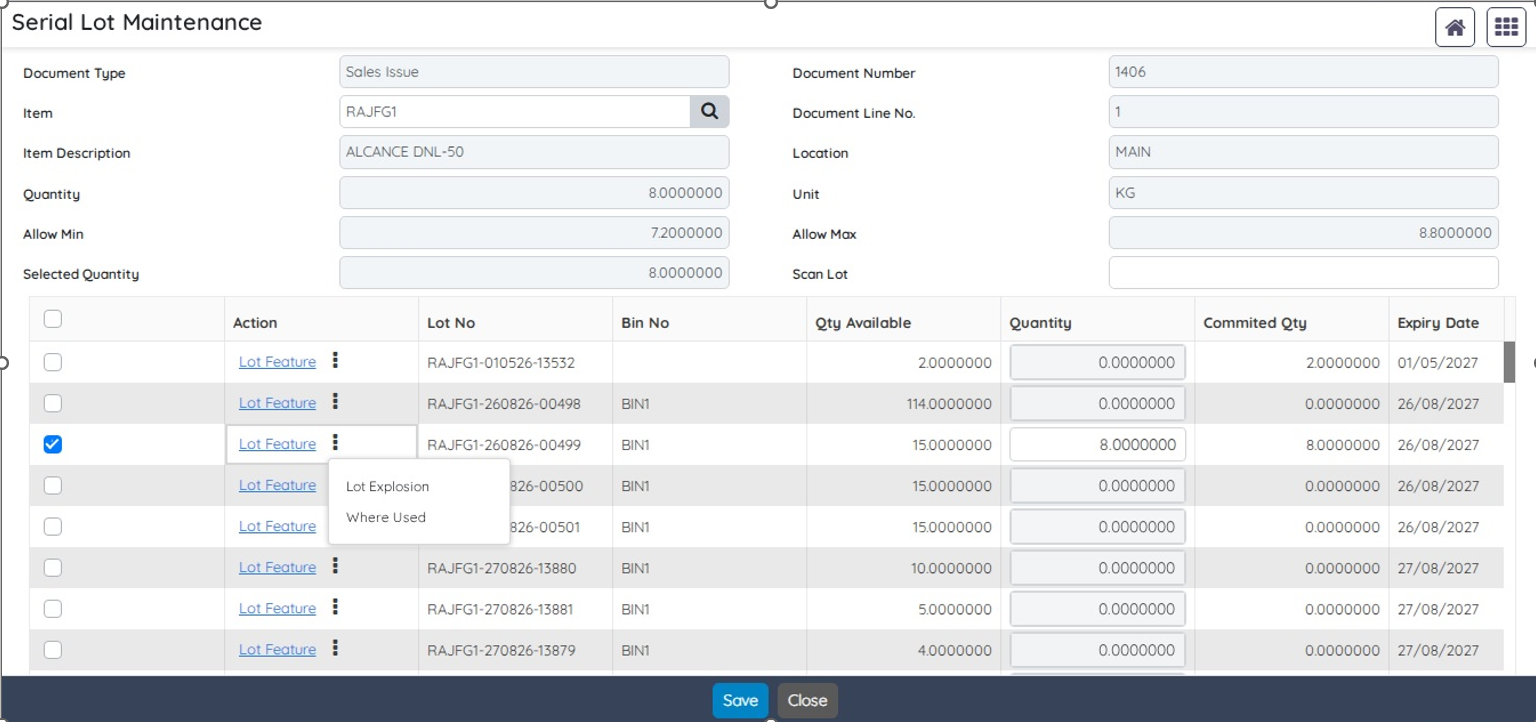
These options appear regardless of the source from which the Serial Lot Maintenance screen was opened, so the screen may display already received lots or new lots being created; if the displayed lot has not yet been received and the user clicks one of the new action buttons, the system opens a blank tab and prompts an appropriate message.
Editable Account Group Name field – Account Group Master
The Group Name field on the Account Group Master screen in BatchMaster Web has been enhanced to allow editing of Group Names for Standard Account Groups (IDs 1-99).
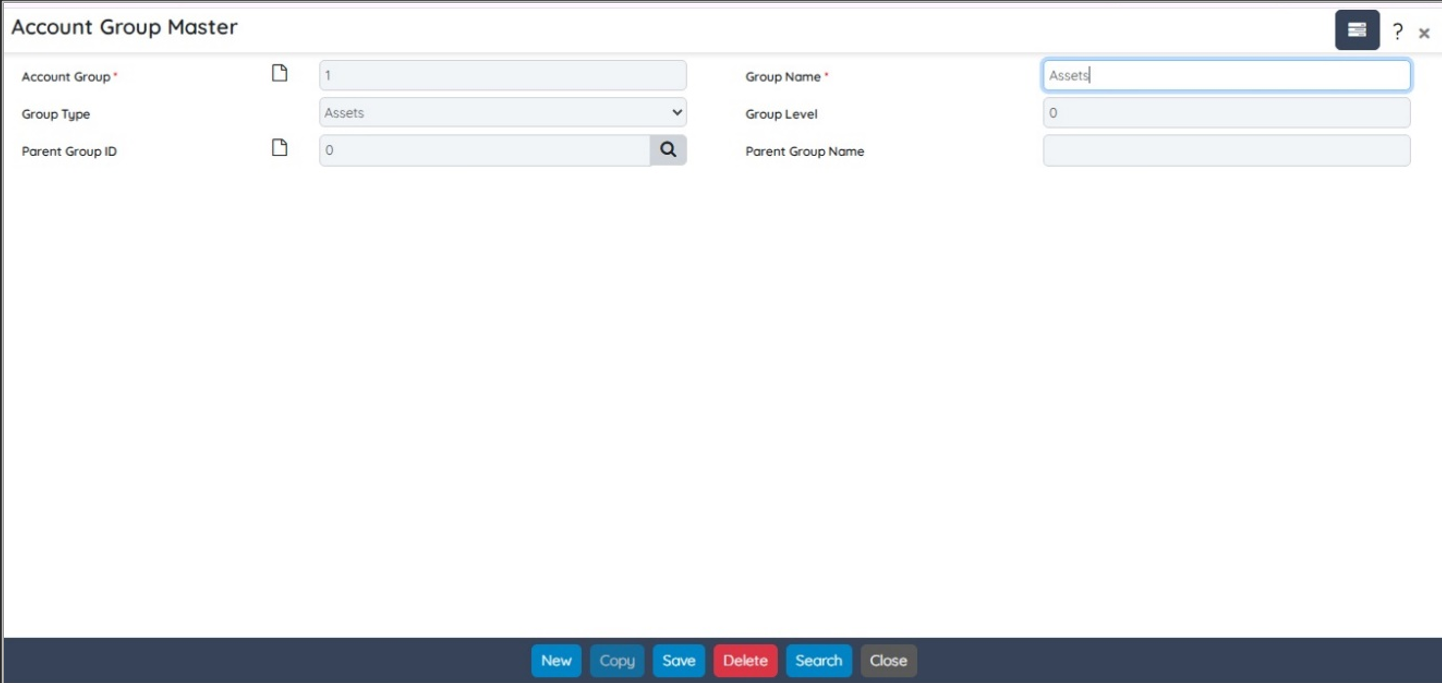
Previously, the Group Names for Standard Account Groups were system-defined and non-editable. However, with this enhancement, users will now be able to update them.
Create Automatic Deviation
BME Web now automatically creates a Deviation Management record whenever an Inspection Transaction (advanced boilerplate of inspection type) results in a failure (From EBT).
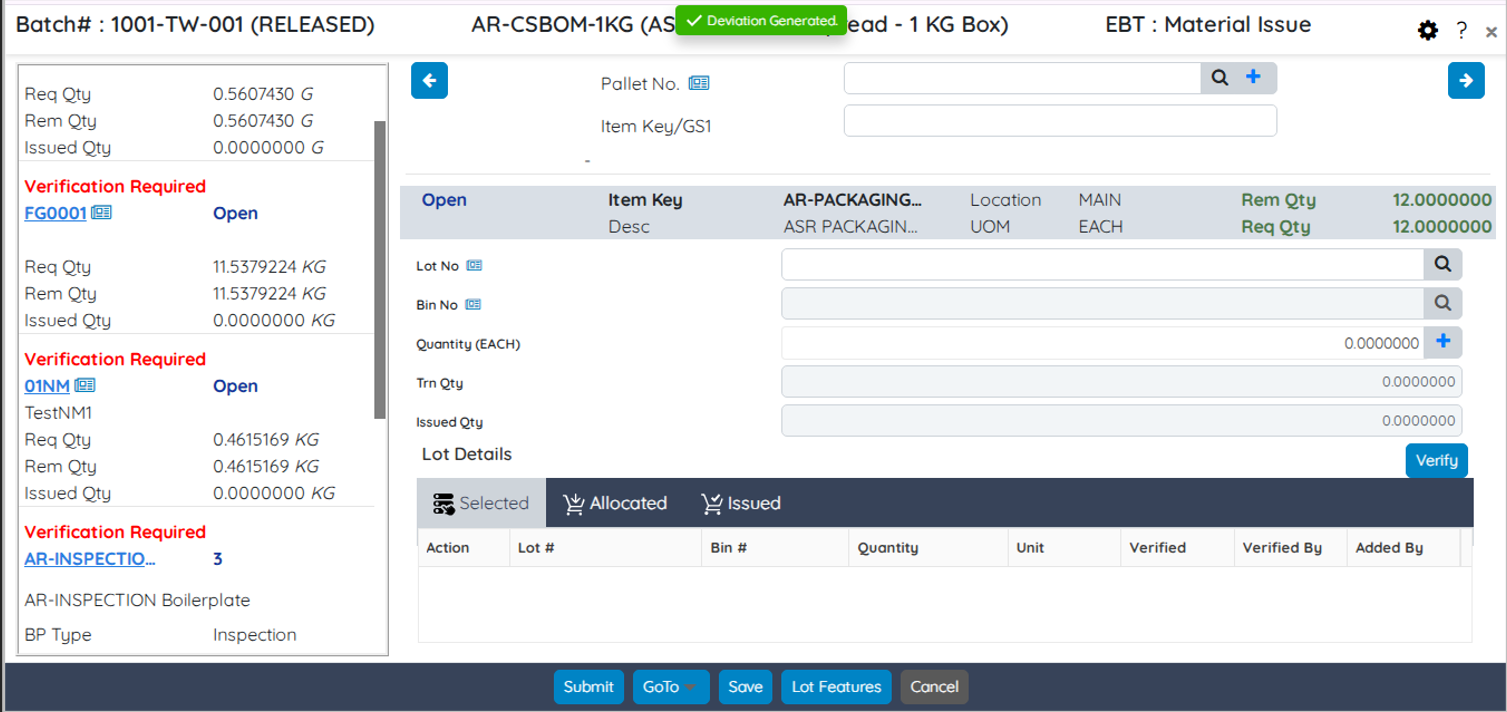
At EBT, when an Advanced BoilerPlate of Inspection type is fetched and a performed test fails, the system automatically generates a Deviation. A “Deviation Generated” indicator is displayed on the EBT screen to notify the user. Key fields in the generated Deviation record are pre-populated, including the Deviation Detail with the IDs of the failed tests. The Deviation is then available at the Deviation Management for review and further action.
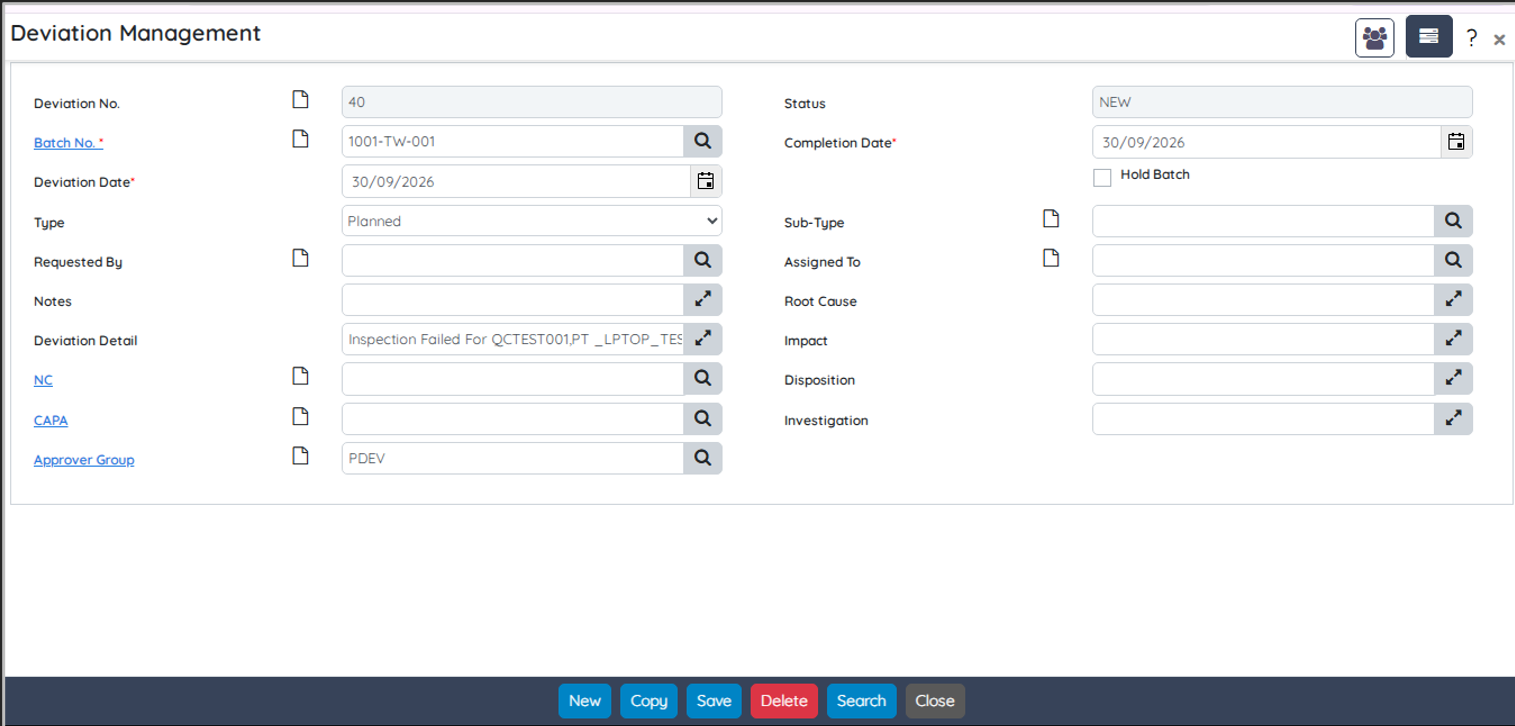
This removes the need for manual deviation creation after inspection failures, ensures every failure is documented, and lets investigation and CAPA start immediately.
- Eliminates manual effort of creating Deviation records for inspection failures
- Ensures compliance as inspection failure doesn’t go undocumented
- Provides immediate visual confirmation (“Deviation Generated”) on the transaction screen
- Pre-fills Batch, dates, failed-test details, etc. for faster completion
This ensures every inspection failure is formally documented, fully traceable, and ready for investigation and CAPA without manual setup steps.
Changes at Request for Quote
To improve quotation tracking, project linkage, and status monitoring, the Request for Quote workflow has been significantly upgraded. Previously, Request for Quote entries were not saved in the system, and no dedicated listing screen was available. With this release, each Request for Quote is saved with an automatically generated unique ID, and a comprehensive Request for Quote Listing Page is now provided to view, search, and manage all historical and active requests in one place.
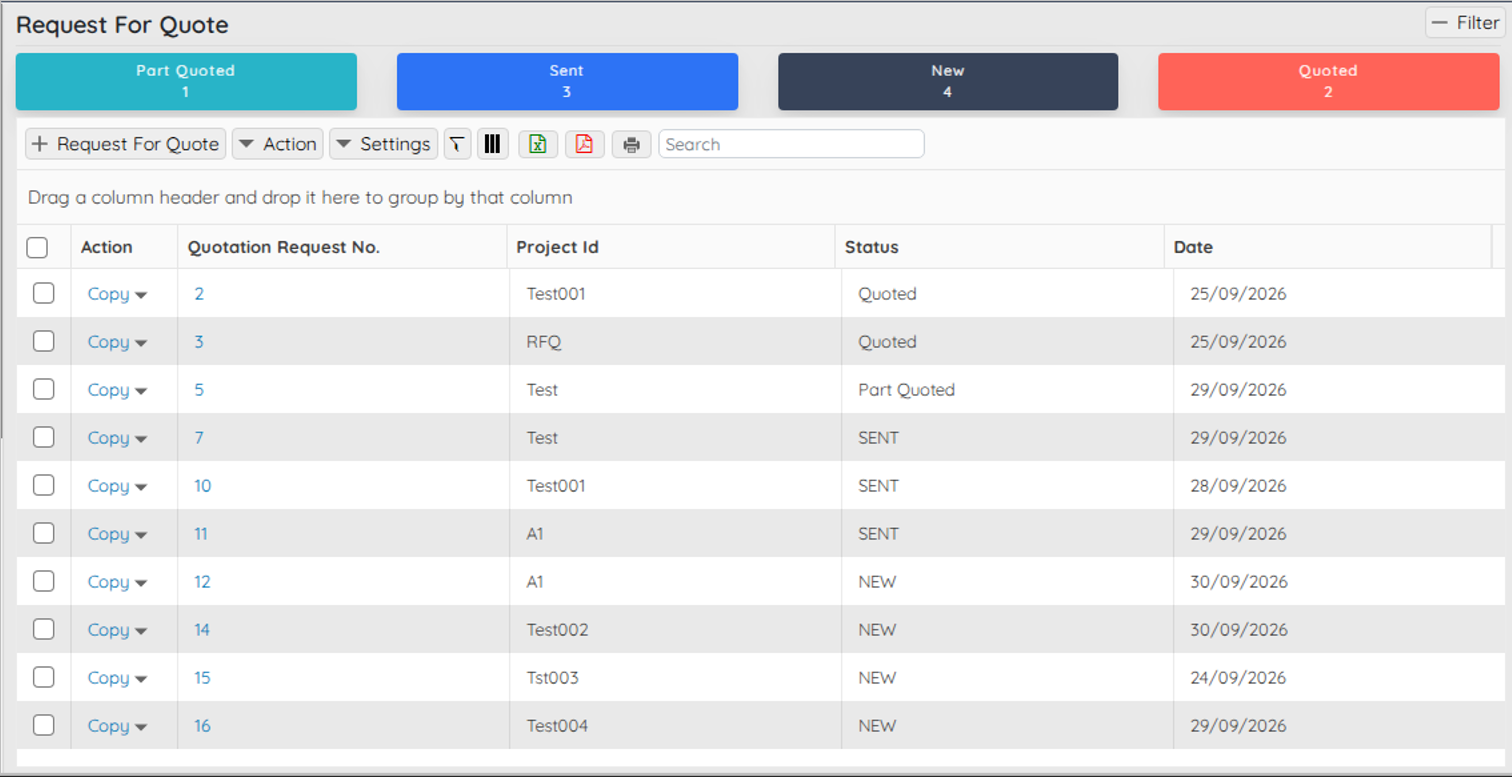
Additionally, four key fields have been introduced on the screen to provide better visibility, traceability, and control throughout the procurement process.
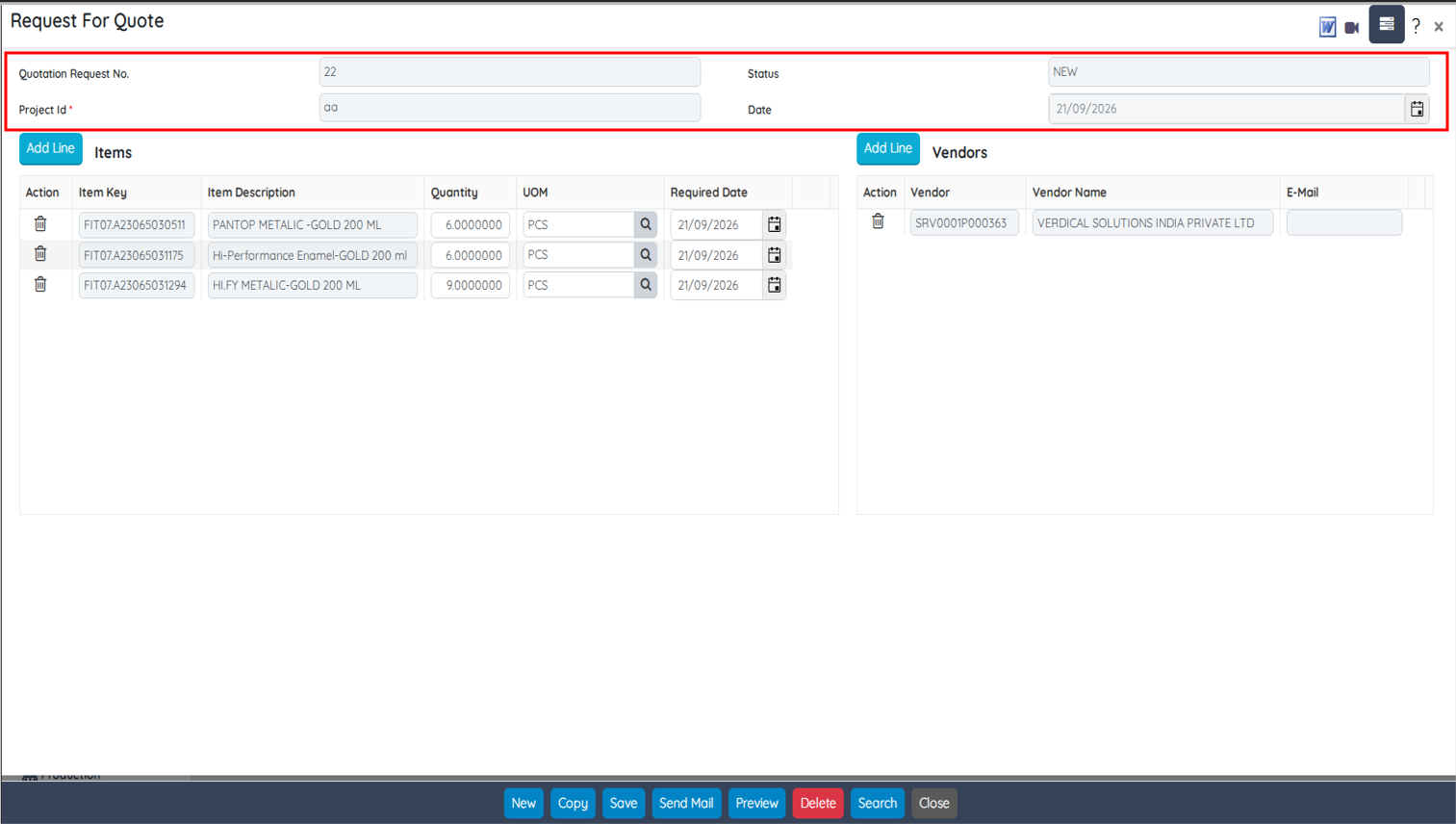
- Quotation Request No. – Captures a unique reference number for each quotation request, ensuring easy identification and tracking.
- Status – Displays the current stage or progress of the quotation request, helping users monitor its lifecycle.
- Project ID – Links the quotation request to a specific project, improving traceability and project-wise reporting.
- Date – Records the quotation date for accurate documentation and audit purposes.